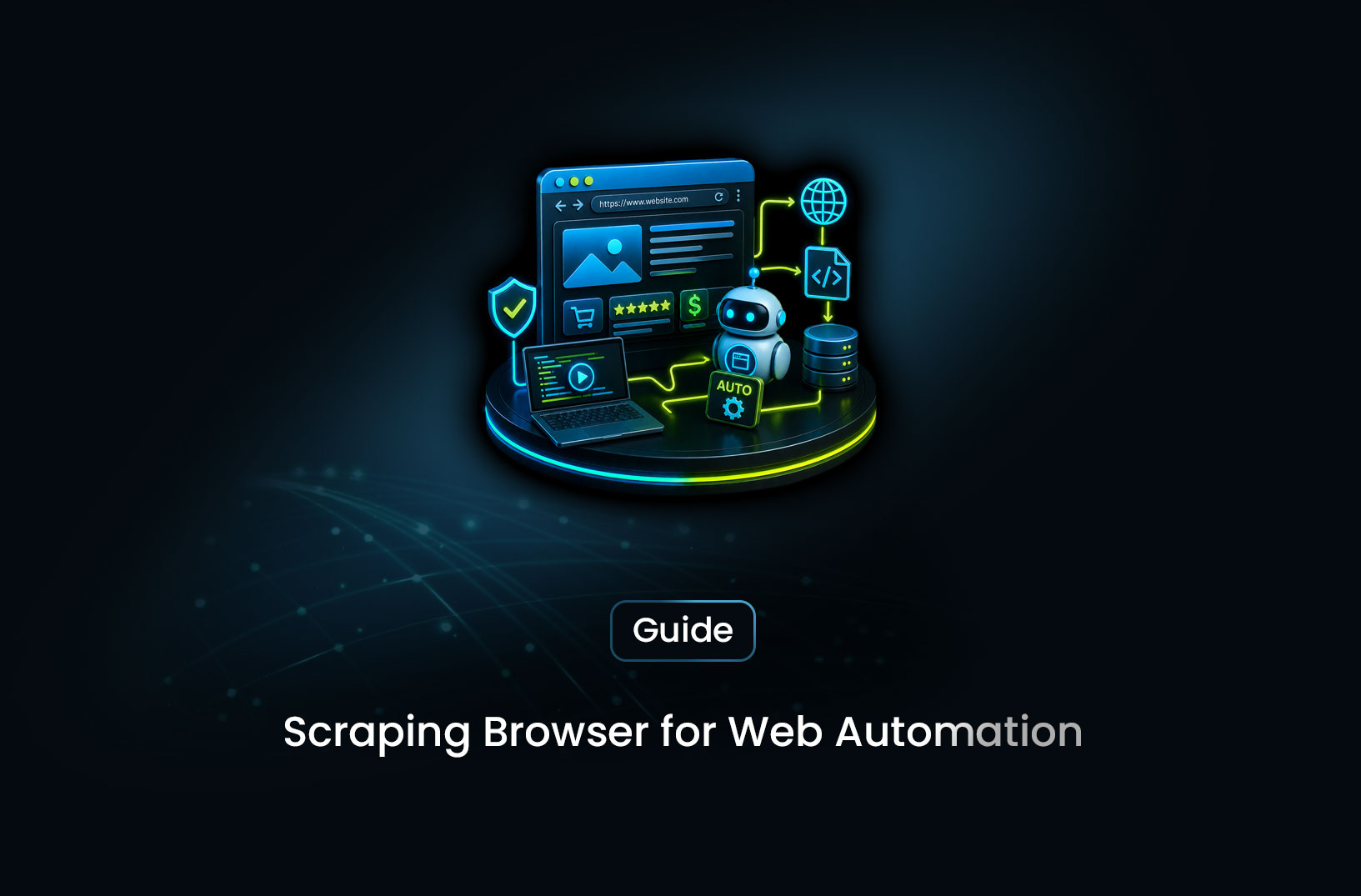
How to Use a Scraping Browser for Web Automation
Web ScrapingA concise overview of how scraping browsers simplify production-grade web automation by handling proxies, fingerprinting, and CAPTCHA solving while enabling scalable HTML retrieval and AI-powered structured data extraction.
You're trying to automate something on the web. Maybe you're monitoring a competitor's pricing. Maybe you're collecting job listings, running end-to-end tests, or building a data pipeline from a site that doesn't have an API. You fire up a headless browser, write some Playwright code, and it works — until it doesn't. The site detects automation, serves a CAPTCHA, blocks your IP, or loads a completely different page than what you see in your regular browser.
That's the gap a scraping browser fills.
A scraping browser is a managed, cloud-hosted browser purpose-built for web automation that works reliably in production — handling JavaScript rendering, anti-bot bypass, residential proxy rotation, and CAPTCHA solving automatically, so your automation logic focuses on what to do with the page, not on how to reach it. You connect to it using the same Playwright or Puppeteer code you already write, but the browser runs in the cloud with all the infrastructure handled for you.
Let's build a complete web automation pipeline with it, step by step.
What is a Scraping Browser?
A scraping browser is a real Chromium browser running in the cloud, optimized for programmatic web automation at scale. Unlike a local headless browser, it comes pre-configured with:
- Residential proxy rotation — every session uses a clean, ISP-assigned IP that passes bot detection
- Browser fingerprint randomization — canvas fingerprints, WebGL renderer, navigator properties all vary per session
- CAPTCHA solving — challenges are resolved transparently before your automation code runs
- Anti-bot bypass — Cloudflare, DataDome, PerimeterX protections are handled at the infrastructure level
You control it using the Chrome DevTools Protocol (CDP) — the same protocol Playwright and Puppeteer use internally. That means you can connect your existing automation scripts to a scraping browser with a single line change: replace browser.launch() with browser.connect() pointing at the cloud endpoint.
MrScraper provides a scraping browser alongside its AI extraction capabilities, giving you the choice of either writing Playwright automation code directly or using natural-language extraction instructions.
What is Web Automation?
Web automation is using code to control a browser programmatically — navigating to pages, interacting with elements, filling forms, extracting data, and capturing results — without human input. Common automation use cases include:
Data collection — Scraping product listings, job postings, real estate data, pricing information, or any structured content from websites that don't provide an API.
Monitoring — Watching for price changes, inventory status updates, new content appearing on a page, or competitor activity.
Testing — Running end-to-end tests that validate a web application's behavior from the user's perspective.
Workflow automation — Filling forms, submitting data, clicking through multi-step processes, or automating repetitive browser-based tasks.
A scraping browser handles all of these use cases more reliably than a local headless browser — particularly for sites with active bot protection.
How a Scraping Browser Works
When you use a scraping browser, the architecture looks like this:
Your automation script (Playwright / MrScraper SDK)
        ↓
CDP connection (WebSocket)
        ↓
Cloud scraping browser (Chromium + residential proxy + anti-bot)
        ↓
Target website
        ↓
Rendered page data flows back up
Your script runs locally. The browser runs in the cloud. Every page request goes through a residential IP. Every browser session presents a randomized fingerprint. CAPTCHAs are resolved before the page reaches your code. You interact with a fully rendered, real-browser DOM — because that's exactly what it is.
Step-by-Step Guide: Web Automation With a Scraping Browser
Step 1: Fetch Raw HTML (Simplest Approach)
For straightforward data extraction where you just need the rendered HTML, MrScraper's Python SDK fetch_html method is the fastest path. It loads the page with the stealth browser and returns the fully rendered HTML — no Playwright required.
import asyncio
import os
from mrscraper import MrScraper
from mrscraper.exceptions import AuthenticationError, APIError, NetworkError

async def fetch_page_html():
    client = MrScraper(token=os.getenv("MRSCRAPER_API_TOKEN"))

    try:
        result = await client.fetch_html(
            "https://example.com/products",
            geo_code="US",        # Route through US residential proxies
            timeout=120,          # Maximum seconds to wait for page load
            block_resources=False # Set True to skip images/CSS for faster fetching
        )
        html = result["data"]
        print(f"Fetched {len(html)} characters of rendered HTML")
        return html

    except AuthenticationError:
        print("Invalid API token — check your MRSCRAPER_API_TOKEN")
    except APIError as e:
        print(f"API error {e.status_code}: {e}")
    except NetworkError as e:
        print(f"Network error: {e}")

asyncio.run(fetch_page_html())
The block_resources=True flag is worth knowing — it tells the browser to skip loading images, fonts, and CSS. For data extraction where you only need text content, this can cut fetch time by 40–60% and reduce bandwidth significantly.
Step 2: AI-Powered Extraction (No Selectors Required)
For structured data extraction, MrScraper's AI scraper lets you describe what you want in plain English. The browser renders the page fully, then the AI reads the content semantically and extracts the fields you specified — without CSS selectors that break when a site redesigns.
Python:
import asyncio
import os
from mrscraper import MrScraper
from mrscraper.exceptions import AuthenticationError, APIError, NetworkError

async def extract_product_listings():
    client = MrScraper(token=os.getenv("MRSCRAPER_API_TOKEN"))

    try:
        # Create a scraper and run it
        result = await client.create_scraper(
            url="https://example.com/products",
            message="Extract all product names, prices, ratings, and availability status",
            agent="listing",   # "listing" for pages with multiple repeated items
            proxy_country="US",
        )
        scraper_id = result["data"]["data"]["id"]
        print(f"Scraper created. ID: {scraper_id}")
        return scraper_id

    except AuthenticationError:
        print("Invalid API token")
    except APIError as e:
        print(f"API error {e.status_code}: {e}")

asyncio.run(extract_product_listings())
Node.js:
import { createAiScraper, MrScraperError } from "@mrscraper/sdk";

async function extractProductListings() {
  try {
    const scraper = await createAiScraper({
      url: "https://example.com/products",
      message: "Extract all product names, prices, ratings, and availability status",
      agent: "listing",
      proxyCountry: "US",   // Note: camelCase in Node.js SDK
    });
    console.log("Scraper created:", scraper);
    return scraper;

  } catch (err) {
    if (err instanceof MrScraperError) {
      console.error(`[${err.status ?? "network"}] ${err.message}`);
    } else {
      throw err;
    }
  }
}

extractProductListings();
The key difference between Python and Node.js: the parameter is proxy_country (snake_case) in Python and proxyCountry (camelCase) in Node.js. Keep this in mind when switching between SDKs.
Step 3: Full Site Crawl With the Map Agent
To crawl an entire website — collecting data across many pages and link depths — use the map agent. It follows links automatically up to your specified depth and page count.
Python:
import asyncio
import os
from mrscraper import MrScraper
from mrscraper.exceptions import APIError, NetworkError

async def crawl_site():
    client = MrScraper(token=os.getenv("MRSCRAPER_API_TOKEN"))

    try:
        result = await client.create_scraper(
            url="https://example.com",
            message="Extract article titles, authors, and publish dates from each page",
            agent="map",
            proxy_country="US",
        )
        print("Crawl started. Scraper ID:", result["data"]["data"]["id"])

    except APIError as e:
        print(f"API error {e.status_code}: {e}")

asyncio.run(crawl_site())
Node.js:
import { createAiScraper, MrScraperError } from "@mrscraper/sdk";

async function crawlSite() {
  try {
    const result = await createAiScraper({
      url: "https://example.com",
      message: "Extract article titles, authors, and publish dates",
      agent: "map",
      maxDepth: 2,           // Follow links 2 levels deep
      maxPages: 50,          // Cap at 50 pages to control cost
      limit: 500,            // Maximum records to return
      includePatterns: "/blog",  // Only crawl blog URLs
      excludePatterns: "/admin", // Skip admin pages
    });
    console.log("Site crawl started:", result);

  } catch (err) {
    if (err instanceof MrScraperError) {
      console.error(`[${err.status ?? "network"}] ${err.message}`);
    }
  }
}

crawlSite();
Step 4: Rerun an Existing Scraper on New URLs
Once you've created a scraper and confirmed it extracts the right data, you can rerun it on new URLs without recreating the configuration. This is the efficient pattern for ongoing monitoring pipelines.
Python — rerun on a new URL:
import asyncio
import os
from mrscraper import MrScraper

async def rerun_scraper_on_new_pages():
    client = MrScraper(token=os.getenv("MRSCRAPER_API_TOKEN"))

    scraper_id = "your-existing-scraper-id"  # From a previous create_scraper call
    new_urls = [
        "https://example.com/products?page=2",
        "https://example.com/products?page=3",
        "https://example.com/products?page=4",
    ]

    # Bulk rerun — more efficient than individual calls
    result = await client.bulk_rerun_ai_scraper(
        scraper_id=scraper_id,
        urls=new_urls,
    )
    print(f"Bulk rerun started for {len(new_urls)} URLs")
    return result

asyncio.run(rerun_scraper_on_new_pages())
Node.js — bulk rerun:
import { bulkRerunAiScraper, MrScraperError } from "@mrscraper/sdk";

async function rerunOnNewPages() {
  try {
    const result = await bulkRerunAiScraper({
      scraperId: "your-existing-scraper-id",
      urls: [
        "https://example.com/products?page=2",
        "https://example.com/products?page=3",
        "https://example.com/products?page=4",
      ],
    });
    console.log("Bulk rerun initiated:", result);

  } catch (err) {
    if (err instanceof MrScraperError) {
      console.error(`[${err.status ?? "network"}] ${err.message}`);
    }
  }
}

rerunOnNewPages();
Bulk rerun is meaningfully more efficient than calling rerun_scraper() in a loop — it batches the requests and reduces API call overhead significantly for large URL lists.
Step 5: Retrieve and Process Results
After a scraper job runs, retrieve the results programmatically:
Python:
import asyncio
import os
import json
from mrscraper import MrScraper
from mrscraper.exceptions import APIError

async def retrieve_results():
    client = MrScraper(token=os.getenv("MRSCRAPER_API_TOKEN"))

    try:
        # Get recent results — sorted by most recently updated
        page = await client.get_all_results(
            sort_field="updatedAt",
            sort_order="DESC",
            page_size=20,
            page=1,
        )

        results = page["data"]
        print(f"Retrieved {len(results)} results")

        for item in results:
            print(f"  ID: {item.get('id')} | Status: {item.get('status')} | URL: {item.get('url')}")

        return results

    except APIError as e:
        print(f"API error {e.status_code}: {e}")

async def retrieve_single_result(result_id: str):
    client = MrScraper(token=os.getenv("MRSCRAPER_API_TOKEN"))

    result = await client.get_result_by_id(result_id)
    print(json.dumps(result["data"], indent=2))
    return result

asyncio.run(retrieve_results())
Node.js:
import { getAllResults, getResultById, MrScraperError } from "@mrscraper/sdk";

async function retrieveResults() {
  try {
    const page = await getAllResults({
      sortField: "updatedAt",
      sortOrder: "DESC",
      pageSize: 20,
      page: 1,
    });

    console.log("Results:", page);

  } catch (err) {
    if (err instanceof MrScraperError) {
      console.error(`[${err.status ?? "network"}] ${err.message}`);
    }
  }
}

retrieveResults();
Step 6: Build a Complete Monitoring Pipeline
Combining the steps above into a full recurring automation pipeline — fetching HTML, extracting structured data, and storing results:
import asyncio
import os
import json
from mrscraper import MrScraper
from mrscraper.exceptions import AuthenticationError, APIError, NetworkError

async def price_monitoring_pipeline(product_urls: list[str], scraper_id: str = None):
    """
    Complete price monitoring pipeline using MrScraper.
    Creates a scraper on first run, reruns it on subsequent runs.
    """
    client = MrScraper(token=os.getenv("MRSCRAPER_API_TOKEN"))

    try:
        if scraper_id is None:
            # First run: create the scraper
            print("Creating new scraper...")
            result = await client.create_scraper(
                url=product_urls[0],
                message="Extract the product name, current price, original price, discount percentage, and whether it is in stock",
                agent="general",   # Single product page
                proxy_country="US",
            )
            scraper_id = result["data"]["data"]["id"]
            print(f"Scraper created: {scraper_id}")

            # Run remaining URLs in bulk
            if len(product_urls) > 1:
                await client.bulk_rerun_ai_scraper(
                    scraper_id=scraper_id,
                    urls=product_urls[1:],
                )

        else:
            # Subsequent runs: bulk rerun on all URLs
            print(f"Rerunning scraper {scraper_id} on {len(product_urls)} URLs...")
            await client.bulk_rerun_ai_scraper(
                scraper_id=scraper_id,
                urls=product_urls,
            )

        # Retrieve latest results
        results_page = await client.get_all_results(
            sort_field="updatedAt",
            sort_order="DESC",
            page_size=len(product_urls),
        )

        print(f"Pipeline complete. {len(results_page['data'])} results available.")
        return scraper_id, results_page["data"]

    except AuthenticationError:
        print("Authentication failed — check MRSCRAPER_API_TOKEN")
    except APIError as e:
        print(f"API error {e.status_code}: {e}")
    except NetworkError as e:
        print(f"Network error: {e}")

# First run — creates the scraper, returns its ID
scraper_id, results = asyncio.run(price_monitoring_pipeline(
    product_urls=[
        "https://example-shop.com/product/123",
        "https://example-shop.com/product/456",
    ]
))

# Save the scraper_id for subsequent runs
print(f"Save this scraper ID for future runs: {scraper_id}")
Common Challenges and Limitations
fetch_html vs create_scraper — which to use? Use fetch_html when you need raw HTML for custom parsing or when you're integrating with an existing HTML parser. Use create_scraper when you want structured, pre-extracted data returned directly without writing parsing logic. For most automation pipelines, create_scraper with the right agent type is the faster path to usable data.
Agent type matters. Using agent="general" on a 50-page product listing will only process one page. Use agent="listing" with max_pages for paginated content. Use agent="map" for full-site crawls. Mismatching the agent to the page type wastes API calls and returns incomplete data.
Async is required throughout. All Python SDK methods are async — you must use asyncio.run() or run them inside an async function. Trying to call client.create_scraper() synchronously will fail silently or raise a coroutine warning.
Results are asynchronous jobs. create_scraper() and rerun_scraper() start jobs and return IDs — they don't block until the job is complete. Use get_all_results() or get_result_by_id() to poll for completed results, or set up a webhook to receive results when they're ready.
Store your scraper IDs. After calling create_scraper(), save the returned scraper_id to a database or config file. Every subsequent run on the same extraction pattern should use rerun_scraper() or bulk_rerun_ai_scraper() with that ID — not a fresh create_scraper() call. This is both more efficient and keeps your extraction history organized.
Conclusion
A scraping browser makes web automation production-grade — handling the infrastructure layer (proxies, fingerprinting, CAPTCHAs) so your code focuses on the automation logic that actually matters. Whether you're fetching raw HTML for custom processing, extracting structured data with AI-powered natural language instructions, or crawling an entire site, the MrScraper SDK gives you the right tool for each scenario.
Start with fetch_html for quick HTML retrieval. Graduate to create_scraper with the appropriate agent for structured extraction. Use bulk_rerun_ai_scraper for efficient multi-URL pipelines. And keep your scraper IDs — every rerun on an existing configuration is faster and more cost-efficient than creating a new one.
What We Learned
from mrscraper import MrScraperis the correct Python import — initialized asclient = MrScraper(token=...), with all methods async and requiringasynciofetch_htmlreturns rendered HTML directly — ideal for custom parsing pipelines; setblock_resources=Trueto skip images and CSS for 40–60% faster fetches on text-heavy targets- Three agent types cover all automation use cases:
"general"for single pages,"listing"for paginated content withmax_pages, and"map"for full-site crawls with depth and pattern controls - Python uses
proxy_country(snake_case), Node.js usesproxyCountry(camelCase) — this is the most common cross-SDK mistake to watch for bulk_rerun_ai_scraper()is significantly more efficient than loopingrerun_scraper()— always prefer bulk operations when running the same scraper against multiple URLs- Save your
scraper_idaftercreate_scraper()— reruns on an existing scraper ID are more efficient than creating new scrapers for the same extraction pattern
FAQ
- What's the difference between
fetch_htmlandcreate_scraper?fetch_htmlreturns raw rendered HTML — you get the full page source after JavaScript execution, and you parse it yourself.create_scraperruns the AI extraction layer on top: you describe what data you want in plain English, and it returns structured JSON with the extracted fields. Usefetch_htmlwhen you have existing parsing logic; usecreate_scraperwhen you want the AI to handle extraction automatically. - Do I need to handle proxy configuration myself?
No — the
proxy_country/geoCodeparameter is all you need. MrScraper handles residential proxy selection, rotation, and session management at the infrastructure level. There's no proxy provider account to configure, no IP list to manage, and no rotation code to write. - How do I know when a scraper job has finished?
create_scraper()andrerun_scraper()return immediately with a job ID. Pollget_result_by_id(result_id)to check job status, or use MrScraper's webhook feature (configurable in the dashboard) to receive a POST request when the result is ready. Webhooks are the recommended approach for production pipelines to avoid unnecessary polling. - Can I use the Node.js SDK in a CommonJS project?
The Node.js SDK requires ES Modules — set
"type": "module"in yourpackage.json. CommonJS (require()) is not supported. If you're in a CommonJS environment, use dynamicimport()or switch to the REST API directly. - What happens if I call
create_scraper()on the same URL repeatedly instead of usingrerun_scraper()? It works but creates a new scraper configuration each time, which consumes more resources and doesn't associate results with a single scraper history. Usecreate_scraper()once to establish the configuration, save the returnedscraper_id, then usererun_scraper()orbulk_rerun_ai_scraper()with that ID for all subsequent runs on the same extraction pattern.
Summarize this post
Open it in your assistant of choice with the prompt ready to send.
Take a Taste of Easy Scraping!

Find more insights here
What is Scraping? A Complete Beginner's Guide for 2026
Learn what a web scraper is in 2026 and how AI-powered tools are replacing brittle CSS scripts for r…
The Ultimate Web Crawlers List: 15 Tools for Every Data Need
Compare the best web crawlers for 2026. Learn the difference between open-source, managed APIs, and…
Web Scraping MCP Server: Giving AI Agents Direct Access to Live Web Data
Learn how a Web Scraping MCP Server gives AI agents live web access while reducing token costs by 87…