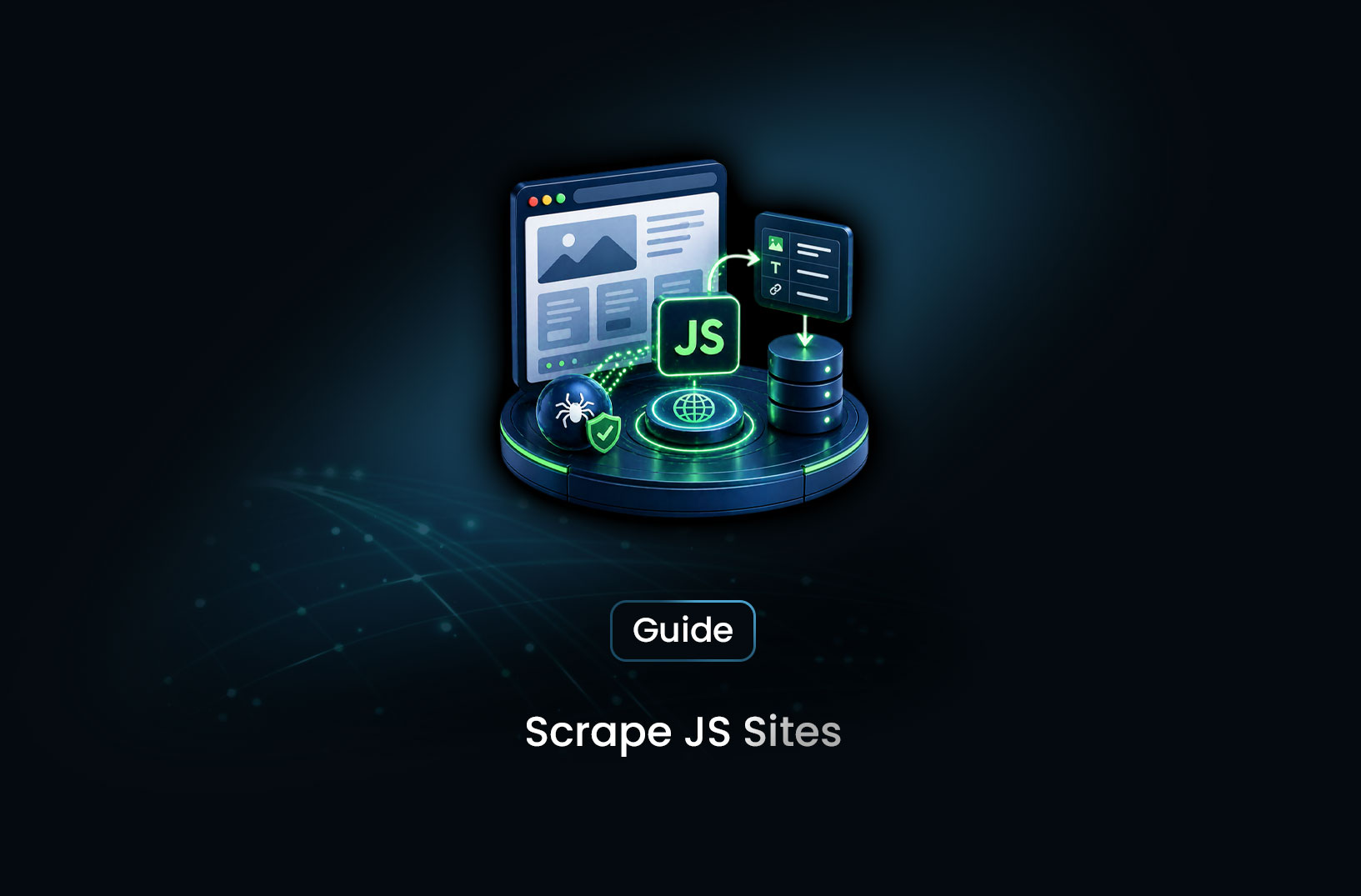
How to Scrape JavaScript-Rendered Pages
Web ScrapingA concise overview of why JavaScript rendering is essential for modern web scraping and how to choose between local tools like Playwright and scalable solutions like MrScraper for reliable data extraction.
You point your scraper at a page. The HTML comes back fine — but where's the data? The product listings are empty. The prices are missing. The table you need isn't there. You inspect the raw response and find a skeleton of a page: a few <div> wrappers, some loading spinners baked into the HTML, and none of the actual content you saw in your browser.
Welcome to the JavaScript-rendered web. You're not broken — your tool is just the wrong one for the job.
The fix: you need something that actually runs JavaScript before trying to extract data — a real browser, or a scraping browser that handles the full rendering pipeline for you. Most modern sites built on React, Vue, Angular, or Next.js don't put their content in the initial HTML at all. It loads asynchronously, after the page executes JavaScript. A plain HTTP request captures the skeleton. A browser captures the data.
Let's walk through exactly how JavaScript rendering works, why it breaks traditional scrapers, and how to build a scraper that handles it properly — step by step.
What Are JavaScript-Rendered Pages?
JavaScript-rendered pages — also called client-side rendered (CSR) or single-page applications (SPAs) — are websites where the content is generated by JavaScript running in your browser, rather than being present in the server's initial HTML response.
When you visit a traditional server-rendered site, the server sends a complete HTML document with all the content already in it. Your browser displays it. A scraper fetching that HTML gets all the data immediately.
When you visit a JavaScript-rendered site, the server sends a minimal HTML shell — often just a <div id="root"></div> and a bundle of JavaScript files. The JavaScript then runs in your browser, fetches data from APIs, and builds the page content dynamically. The actual product listings, prices, articles, or whatever you're after only exist after that JavaScript has finished executing.
According to web almanac data from HTTP Archive, over 75% of mobile pages now ship more than 500KB of JavaScript — and a significant portion of those pages rely on JavaScript for their core content rendering. Trying to scrape them without a browser is like reading a recipe before the ingredients have been assembled.
How JavaScript Rendering Breaks Traditional Scrapers
Here's what happens with a standard requests call on a React-based product page:
import requests
from bs4 import BeautifulSoup

response = requests.get("https://react-shop-example.com/products")
soup = BeautifulSoup(response.text, "html.parser")

# This returns nothing — the products load via JavaScript after page render
products = soup.select(".product-card")
print(f"Found {len(products)} products")
# Output: Found 0 products
Zero products. Not because the scraper is broken — but because at the moment requests captured the page, those .product-card elements didn't exist yet. They're injected into the DOM by JavaScript that runs client-side, after the initial HTML arrives.
The same scraper on a server-rendered page returns data instantly. On a JavaScript-rendered page, it silently returns nothing — and that silent failure is what makes this particularly frustrating to debug.
Step-by-Step Guide: Scraping JavaScript-Rendered Pages
Step 1: Identify Whether a Page is JavaScript-Rendered
Before reaching for a browser, confirm you actually need one. Some pages look dynamic but are actually server-rendered. Check by comparing the raw HTML response to what you see in your browser.
import requests

response = requests.get(
    "https://example.com/products",
    headers={"User-Agent": "Mozilla/5.0 (Windows NT 10.0; Win64; x64) AppleWebKit/537.36"}
)

# Search for a piece of content you can see in your browser
if "Product Name" in response.text:
    print("Server-rendered — requests will work fine")
else:
    print("JavaScript-rendered — you need a browser")
You can also open Chrome DevTools → Network tab → refresh the page → look at the first HTML document response. If the content you need is in that response, it's server-rendered. If the HTML is mostly empty <div> wrappers, it's JavaScript-rendered.
Step 2: Choose Your Rendering Approach
You have two main options for handling JavaScript rendering:
Option A: Run a local headless browser with Playwright Good for development, low-volume scraping, and sites without anti-bot protection.
Option B: Use MrScraper's Scraping Browser Better for production, protected sites, and anything requiring proxy rotation or CAPTCHA handling. Handles JavaScript rendering automatically at the infrastructure level.
We'll walk through both, starting with Playwright locally, then showing the upgrade path to MrScraper.
Step 3: Scrape with Playwright (Local Approach)
Install Playwright and its browser binaries:
pip install playwright
playwright install chromium
Here's a complete scraper for a JavaScript-rendered product listing page:
from playwright.async_api import async_playwright
import asyncio
import json

async def scrape_js_page(url):
    async with async_playwright() as p:
        # Launch headless Chromium — this runs real JavaScript
        browser = await p.chromium.launch(headless=True)
        page = await browser.new_page()

        # Set a realistic User-Agent — bare Playwright gets flagged easily
        await page.set_extra_http_headers({
            "User-Agent": "Mozilla/5.0 (Windows NT 10.0; Win64; x64) AppleWebKit/537.36 (KHTML, like Gecko) Chrome/124.0.0.0 Safari/537.36"
        })

        print(f"Navigating to {url}...")
        await page.goto(url, wait_until="domcontentloaded")

        # Wait for the product cards to appear in the DOM
        # This is the critical step — don't extract before content loads
        await page.wait_for_selector(".product-card", timeout=10000)

        # Now the JavaScript has run and the content is in the DOM
        products = await page.eval_on_selector_all(
            ".product-card",
            """els => els.map(el => ({
                name: el.querySelector("h2, .product-name")?.textContent.trim() || null,
                price: el.querySelector(".price, [data-price]")?.textContent.trim() || null,
                rating: el.querySelector(".rating, .stars")?.textContent.trim() || null,
                link: el.querySelector("a")?.href || null,
            }))"""
        )

        await browser.close()
        return products

results = asyncio.run(scrape_js_page("https://react-shop-example.com/products"))
print(json.dumps(results[:3], indent=2))
The critical line here is wait_for_selector(). This tells Playwright to pause execution until the .product-card elements actually appear in the DOM — meaning the JavaScript has finished fetching and rendering the data. Without this wait, you're racing the JavaScript and losing.
The wait_until="domcontentloaded" in goto() is intentionally lighter than "networkidle" — it fires when the initial HTML is parsed, then wait_for_selector() handles waiting for the specific content. This combination is faster than networkidle while still being reliable.
Step 4: Handle Infinite Scroll and Lazy-Loaded Content
Many JavaScript-rendered sites don't paginate traditionally — they load more content as you scroll. If you navigate to the page and immediately extract, you only get the first batch.
async def scrape_with_infinite_scroll(url, max_scrolls=5):
    async with async_playwright() as p:
        browser = await p.chromium.launch(headless=True)
        page = await browser.new_page()

        await page.goto(url, wait_until="domcontentloaded")
        await page.wait_for_selector(".product-card")

        all_products = set()  # Use a set to deduplicate across scroll batches

        for scroll_num in range(max_scrolls):
            # Extract current batch of visible products
            batch = await page.eval_on_selector_all(
                ".product-card h2",
                "els => els.map(el => el.textContent.trim())"
            )
            all_products.update(batch)

            # Scroll to the bottom to trigger the next load
            prev_count = len(all_products)
            await page.evaluate("window.scrollTo(0, document.body.scrollHeight)")

            # Wait for new items to load — check if count increased
            await asyncio.sleep(2)

            new_batch = await page.eval_on_selector_all(
                ".product-card h2",
                "els => els.map(el => el.textContent.trim())"
            )
            all_products.update(new_batch)

            # If no new items loaded after scrolling, we've hit the end
            if len(all_products) == prev_count:
                print(f"No new items after scroll {scroll_num + 1} — reached end")
                break

            print(f"Scroll {scroll_num + 1}: {len(all_products)} products collected")

        await browser.close()
        return list(all_products)
The deduplication via set() is the magic part here — since you're scrolling and re-extracting all visible items each time, you'll see the same items from previous scrolls mixed in with the new ones. Deduplicating ensures you're counting net-new items correctly and knowing when to stop.
Step 5: Intercept XHR/Fetch Calls for Cleaner Data
Here's where things get genuinely interesting. Many JavaScript-rendered sites don't build their UI from HTML at all — they make API calls in the background, receive JSON, and render it into the DOM. If you can intercept that API call directly, you skip the HTML parsing entirely and get the clean, structured data the page itself uses.
async def intercept_api_response(url, api_pattern):
    async with async_playwright() as p:
        browser = await p.chromium.launch(headless=True)
        page = await browser.new_page()

        captured_data = []

        # Listen for network responses matching your API pattern
        async def handle_response(response):
            if api_pattern in response.url and response.status == 200:
                try:
                    data = await response.json()
                    captured_data.append(data)
                    print(f"Captured API response from: {response.url}")
                except Exception:
                    pass  # Not all responses are JSON

        page.on("response", handle_response)

        await page.goto(url, wait_until="networkidle")
        await browser.close()

        return captured_data

# Find the API endpoint in DevTools Network tab, then intercept it
results = asyncio.run(
    intercept_api_response(
        "https://react-shop-example.com/products",
        api_pattern="/api/products"
    )
)

# The captured data is already structured JSON — no HTML parsing needed
print(json.dumps(results[0], indent=2) if results else "No API calls captured")
To find the right api_pattern: open Chrome DevTools → Network tab → filter by "Fetch/XHR" → reload the page → look for requests that return JSON with the product data you need. Copy part of that URL as your pattern. This approach gives you cleaner data with less fragility than CSS selector scraping — because you're consuming the same structured data the frontend uses.
Step 6: Scale to Production with MrScraper
Local Playwright works well for development and unprotected sites. But the moment your target has anti-bot protection — or you need to scale beyond a handful of concurrent sessions — the operational complexity compounds quickly.
At this point, things can get tricky: Cloudflare challenges start appearing, your server IPs get flagged, CAPTCHA solving needs wiring in, and suddenly your scraper spends more time fighting blocks than collecting data.
This is where MrScraper's Scraping Browser steps in. It handles JavaScript rendering at the infrastructure level — with residential proxy rotation, browser fingerprint randomization, and transparent CAPTCHA solving baked in. You connect from your existing Playwright code using a single line change:
from playwright.async_api import async_playwright
import asyncio
import json

async def scrape_js_production(url):
    async with async_playwright() as p:
        # Connect to MrScraper's cloud scraping browser
        # JavaScript rendering, proxies, and anti-bot bypass are all handled automatically
        browser = await p.chromium.connect_over_cdp(
            "wss://browser.mrscraper.com?token=YOUR_API_TOKEN"
        )

        page = await browser.new_page()

        # Everything below is identical to your local Playwright code
        await page.goto(url, wait_until="domcontentloaded")
        await page.wait_for_selector(".product-card", timeout=15000)

        products = await page.eval_on_selector_all(
            ".product-card",
            """els => els.map(el => ({
                name: el.querySelector("h2, .product-name")?.textContent.trim() || null,
                price: el.querySelector(".price")?.textContent.trim() || null,
            }))"""
        )

        await browser.close()
        return products

results = asyncio.run(scrape_js_production("https://cloudflare-protected-shop.com/products"))
print(json.dumps(results[:3], indent=2))
One line changes — launch() becomes connect_over_cdp(). Every selector, every wait, every extraction call — unchanged. But now the browser is running inside MrScraper's cloud infrastructure with real residential IPs and genuine hardware-level browser profiles that bypass modern anti-bot systems.
Alternatively, if you want structured data extracted automatically without writing selectors at all, use MrScraper's AI extraction SDK:
import asyncio
from mrscraper import MrScraperClient

async def extract_js_data():
    client = MrScraperClient(token="YOUR_MRSCRAPER_API_TOKEN")

    # Describe what you want in plain English — AI handles the rest
    result = await client.create_scraper(
        url="https://react-shop-example.com/products",
        message="Extract all product names, prices, ratings, and availability status",
        agent="listing",     # Optimized for pages with repeated items
        proxy_country="US",
    )

    scraper_id = result["data"]["data"]["id"]
    print("Extraction running. Scraper ID:", scraper_id)

asyncio.run(extract_js_data())
No selectors. No wait conditions. No parsing logic. You describe the data you want, and MrScraper's AI figures out the page structure — even on a JavaScript-rendered page — and returns structured JSON.
Common Challenges and Limitations
wait_for_selector() timeout errors — If your selector never appears, either the page structure changed (inspect it manually), the selector is wrong, or the content loads differently than expected. Increase the timeout first (timeout=30000), then verify your selector in the browser console with document.querySelectorAll(".your-selector").
networkidle is slow on API-heavy pages — Some pages fire dozens of background API requests continuously — analytics pings, user tracking, chat widgets. wait_until="networkidle" waits for ALL network activity to stop, which can take 30+ seconds or never resolve. Use domcontentloaded + wait_for_selector() for the specific element you need instead.
Infinite scroll with no clear "end" signal — Some implementations don't have a clean end state. Your scroll loop needs a hard cap (max_scrolls) and a stale-count check to avoid running forever. The pattern in Step 4 above handles both.
React/Vue apps with client-side routing — Navigating via page.goto() always works, but clicking internal links sometimes triggers client-side routing without a full page load. If your selector disappears after clicking an internal link, use wait_for_selector() after the click — not just after the initial goto().
Shadow DOM components — Some modern web components encapsulate their content in Shadow DOM, which isn't accessible via standard CSS selectors. Use Playwright's pierce/ selector prefix for Shadow DOM: page.query_selector("pierce/.product-card").
Conclusion
JavaScript rendering is no longer the exception — it's the default for most modern web applications. The days of reliably scraping any site with requests + BeautifulSoup are behind us. If your data isn't in the initial HTML response, you need a tool that actually runs the JavaScript: either a local browser via Playwright, or a cloud-based scraping browser for production workloads.
The approach depends on your target. Start local with Playwright to validate your extraction logic — it's fast to set up and costs nothing. When you hit anti-bot walls or need to scale, flip to MrScraper's Scraping Browser with one line change: connect_over_cdp() instead of launch(). Or skip the selector work entirely and use MrScraper's AI extraction SDK with a natural-language description of what you need.
The data is there. You just need the right tool to reach it.
What We Learned
- JavaScript-rendered pages send an empty HTML shell first — the actual content is injected by JavaScript running client-side, making
requests+BeautifulSoupreturn empty results without any obvious error wait_for_selector()is non-negotiable — never run extraction logic immediately afterpage.goto(); always wait for a reliable element that confirms your target content has fully rendered in the DOM- XHR/Fetch interception is cleaner than HTML parsing — when a page loads its data via background API calls, intercepting those responses gives you the structured JSON the frontend uses, with zero selector fragility
domcontentloaded+wait_for_selector()outperformsnetworkidlefor most sites —networkidlewaits for all background requests to stop, which can be extremely slow or never resolve on analytics-heavy pages- Infinite scroll requires a stale-count check — always track whether new items actually appeared after each scroll; without this your loop runs to
max_scrollsevery time even after the content ends connect_over_cdp()is the single-line upgrade from local to production — your Playwright selectors, wait conditions, and extraction logic stay completely unchanged; only the browser's location moves from your machine to MrScraper's cloud infrastructure
FAQ
- Why does my Playwright scraper work locally but return empty results in CI/CD?
Headless Chromium in CI environments sometimes has different rendering behavior — slower, different fonts, missing GPU acceleration. Try increasing your
wait_for_selector()timeout, and make sure you're not relying onnetworkidlewhich can behave differently across environments. Using MrScraper's cloud browser eliminates environment inconsistency entirely. - Can I scrape JavaScript-rendered pages without a browser at all?
Sometimes. If the page loads its data from a predictable API endpoint, you can call that endpoint directly with
requests— skipping the browser entirely. Open Chrome DevTools → Network → filter XHR/Fetch → find the API call that returns your data. This is faster and more reliable when it works, but requires reverse-engineering the API. - What's the difference between
wait_until="networkidle"andwait_for_selector()?wait_until="networkidle"pauses navigation until all network requests have settled.wait_for_selector()pauses until a specific DOM element appears. For scraping,wait_for_selector()is almost always better — it's faster and directly confirms that the content you need is ready, rather than waiting for unrelated background requests. - How do I scrape a React app that uses client-side routing?
Use
page.goto()for initial navigation. For internal link clicks, addwait_for_selector()after each click with the selector for content on the new "page." React Router and similar libraries don't trigger full page loads on internal navigation — the DOM updates in place, so you need to wait for specific elements rather than waiting for a new page to load. - Does MrScraper's Scraping Browser automatically handle JavaScript rendering? Yes, completely. It runs a full browser engine, so React, Vue, Angular, and any other JavaScript framework renders exactly as it would in a real browser. JavaScript rendering is automatic — you don't need to configure anything or specify that a page is JavaScript-rendered. Just navigate to the URL and wait for your content selector.
Summarize this post
Open it in your assistant of choice with the prompt ready to send.
Take a Taste of Easy Scraping!

Find more insights here
The Ultimate Web Crawlers List: 15 Tools for Every Data Need
Compare the best web crawlers for 2026. Learn the difference between open-source, managed APIs, and…
Web Scraping MCP Server: Giving AI Agents Direct Access to Live Web Data
Learn how a Web Scraping MCP Server gives AI agents live web access while reducing token costs by 87…
Scaling E-commerce Competitive Intelligence with Automated Data Harvesting
Scale e-commerce data harvesting with residential proxies and AI. Learn how modern data extraction s…