
JavaScript Crawling: How to Crawl JS-Rendered Sites
Web ScrapingMost modern sites render content with JavaScript. Learn how JS crawling works, why plain crawlers miss content, and how to fix it.
You send a request with requests or curl, and the HTML that comes back is nearly empty: a <div id="root"></div> and a <script> tag. The content you can see in your browser simply isn't there. That happens because the site renders its content with JavaScript after the page loads.
JavaScript crawling means fetching a page, executing its JavaScript, and only then reading the resulting HTML. This article covers why plain crawlers fail, how to detect JS-rendered sites, every approach for crawling them, and the real cost of rendering.
Why plain crawlers miss content on modern sites
The root cause is the shift from server-rendered HTML to client-rendered applications. Four rendering models define where the gap appears.
Server-side rendering (SSR): the server sends complete HTML. A basic HTTP request gets everything.
Client-side rendering (CSR): the server sends an empty shell plus a JavaScript bundle. The browser builds the page. A basic HTTP request returns almost nothing. React, Vue, Angular, and Svelte apps frequently use this pattern.
Static site generation (SSG): HTML is built at deploy time. Easy to crawl.
Hydration: the server sends pre-rendered HTML, then JavaScript takes over interactivity. Partially crawlable, but dynamic content loaded after hydration will be missing.
Here's the raw vs. rendered comparison:
<!-- What curl returns from a React CSR app -->
<!DOCTYPE html>
<html>
  <head><title>My Store</title></head>
  <body>
    <div id="root"></div>
    <script src="/static/js/main.a3f2c1.js"></script>
  </body>
</html>
<!-- What the browser renders after JS executes -->
<div id="root">
  <div class="product-grid">
    <article class="product-card">
      <h2>Widget Pro</h2>
      <span class="price">$49.99</span>
    </article>
    <!-- 47 more product cards... -->
  </div>
</div>
The server sent almost nothing; the browser built everything. That gap is exactly what a JS rendering crawler bridges.
Beyond the initial render, many sites load content via AJAX calls after the page is ready: infinite scroll, "load more" buttons, and lazy loading of images and content blocks. A plain HTTP request gets none of it.
Frameworks you'll encounter: React, Vue, Angular, Svelte, Next.js (SSR or CSR), and Nuxt. If you're hitting a modern single-page application, assume you need rendering.
How to tell whether a site needs JavaScript rendering
Before spinning up a headless browser, spend two minutes checking whether you actually need one.
View source and search: Press Ctrl+U to see raw HTML. Search for text visible on the rendered page. If it's missing, JavaScript built it.
Compare view-source with DevTools: "View Source" shows the server's response. The Elements panel (F12) shows the live DOM after JavaScript ran. A big difference means heavy client-side rendering.
Disable JavaScript and reload: In Chrome DevTools → Settings → Disable JavaScript. If content disappears, it requires rendering.
Quick command-line check:
curl -s https://example.com | grep "some text you see on the page"
Check the Network tab for XHR/fetch calls. This is the most valuable step. Open DevTools, filter by XHR or Fetch, and reload. Watch for requests returning JSON, which are the same API endpoints the frontend uses.
If you can replicate that API call directly, you get structured JSON without loading a browser. Faster, cheaper, more reliable. Always check this first.
The ways to crawl JavaScript-rendered sites
Five approaches cover the spectrum of JavaScript crawling solutions, from free and fast to fully managed.
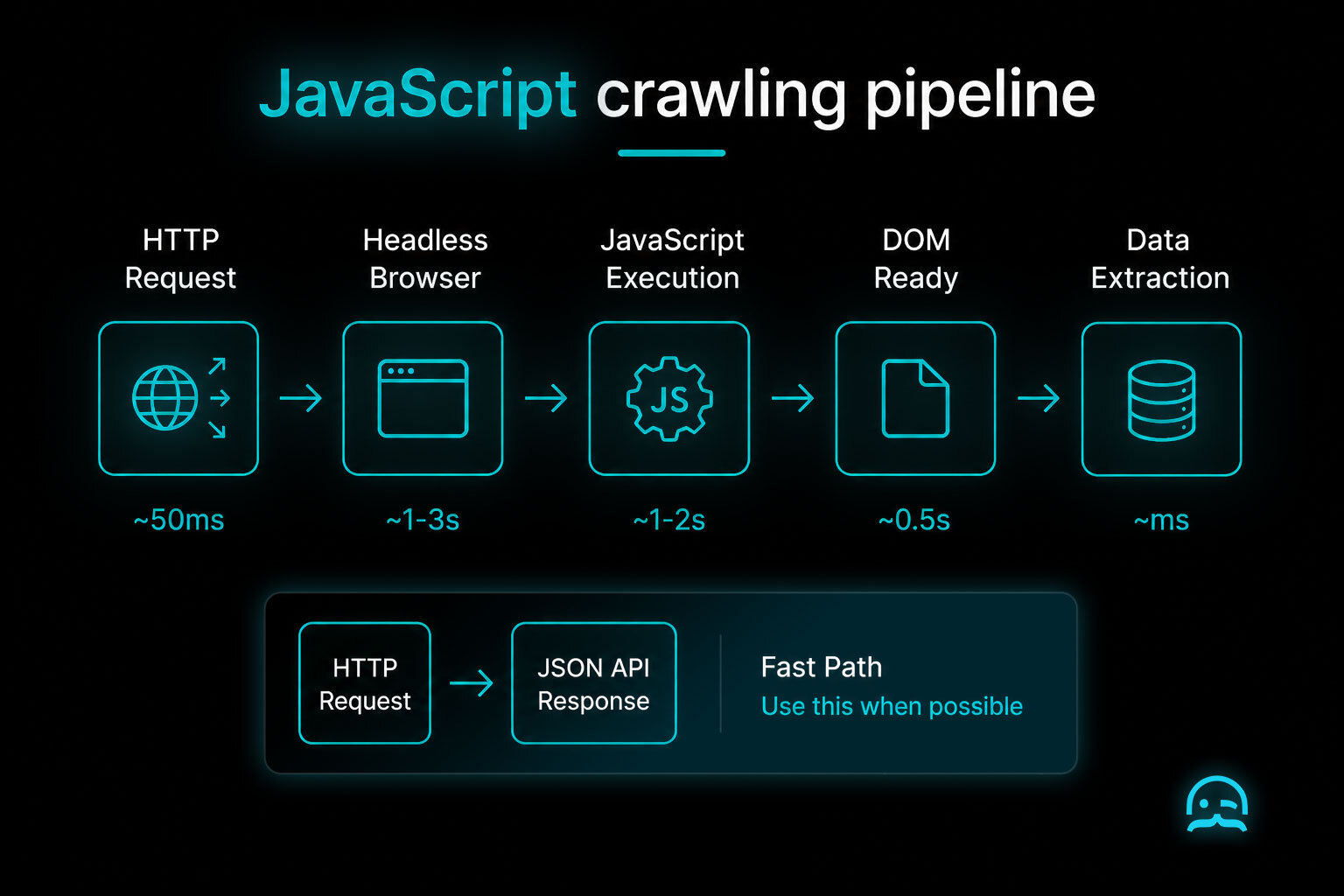
Call the underlying API directly
The fastest approach for crawling data from javascript webpages when it works. Modern SPAs almost always fetch data from an API your Network tab reveals.
import requests

headers = {
    "Accept": "application/json",
    "x-requested-with": "XMLHttpRequest",
    "Referer": "https://example.com/products",
}

response = requests.get(
    "https://api.example.com/v2/products?category=electronics&page=1",
    headers=headers, timeout=10,
)
data = response.json()  # Structured JSON, no rendering needed

for product in data.get("items", []):
    print(product["name"], product["price"])
Downsides: The API may need dynamic auth tokens generated by frontend JavaScript, and endpoints can change without warning.
Headless browsers (Playwright, Puppeteer, Selenium)
A headless browser runs a full browser engine without a visible window. This is the standard approach for javascript web crawling when you can't use the underlying API.
Playwright is the current default: all major browsers, excellent async support, well-designed waits. See the Playwright official documentation. Puppeteer is Google's Chrome-specific library for Node.js (see Playwright vs Puppeteer). Selenium has the widest language support but a more verbose API (see Playwright vs Selenium).
import asyncio
from playwright.async_api import async_playwright

async def crawl_js_page(url: str) -> str:
    async with async_playwright() as p:
        browser = await p.chromium.launch(headless=True)
        page = await browser.new_page()

        # Block images and fonts to cut load time
        await page.route("**/*", lambda route: route.abort()
            if route.request.resource_type in ("image", "font", "media")
            else route.continue_())

        await page.goto(url, wait_until="domcontentloaded")
        await page.wait_for_selector(".product-card", timeout=10000)

        html = await page.content()
        await browser.close()
        return html

html = asyncio.run(crawl_js_page("https://example.com/products"))
Crawling frameworks with rendering built in
When you need URL queuing, deduplication, and retries alongside rendering: Crawlee (JavaScript/TypeScript) has built-in Playwright support. Scrapy (Python) pairs with scrapy-playwright or Splash. The best tools for crawling javascript SPAs at scale are frameworks with rendering built in.
Managed rendering and crawling APIs
Send a URL, get back rendered HTML. No browser infrastructure to manage. The trade-off: higher per-request cost.
MrScraper's Web Unblocker fits this category: connect via CDP at wss://browser.mrscraper.com using the same Playwright code you already write. Anti-bot handling and proxy rotation are managed for you.
Prerendering for your own site
If you own the site and want it crawlable without changing your framework: prerendering services intercept bot requests, render server-side, and serve static HTML while real users get the CSR experience.
Approach comparison table
| Approach | Speed | Cost | Reliability | Best for |
|---|---|---|---|---|
| Direct API call | ~50ms | Near zero | High (when accessible) | Sites with JSON APIs |
| Headless browser | 2–5s/page | Medium (infra) | High | Most JS-rendered sites |
| Crawling framework | 2–5s | Medium | Very high | Large-scale crawls |
| Managed API | 2–5s | Higher per-request | Very high | No-infra teams |
| Prerendering | Fast for bots | Low | High | Own site SEO |
Making JavaScript crawling actually work
Loading a page in a headless browser is not a finished crawler. These craft details separate working production code from prototypes that break silently at scale.
Waiting correctly
Never use fixed delays like time.sleep(). They're either too long or too short. Use a proper wait for selector, network idle, or specific API response:
# Wait for a CSS selector
await page.wait_for_selector(".product-grid", timeout=10000)

# Wait until network idle state (no requests for 500ms)
await page.wait_for_load_state("networkidle")

# Intercept a specific API response
async with page.expect_response(
    lambda r: "api/products" in r.url and r.status == 200
) as resp:
    await page.goto(url)
data = await (await resp.value).json()
Handling infinite scroll
async def scroll_to_bottom(page, selector: str):
    prev_count = 0
    while True:
        items = await page.query_selector_all(selector)
        if len(items) == prev_count:
            break  # No new items; reached the end
        prev_count = len(items)
        await items[-1].scroll_into_view_if_needed()
        await page.wait_for_timeout(1500)
    return await page.query_selector_all(selector)
Blocking unnecessary resources
Block images, fonts, and media to cut render time by more than half:
BLOCKED = {"image", "font", "media", "ping"}
await page.route("**/*", lambda route: route.abort()
    if route.request.resource_type in BLOCKED else route.continue_())
Managing memory and concurrency
Each browser instance uses 200–400MB of RAM. Launch one browser, create lightweight contexts for each page, and close contexts after extraction. Don't launch a new browser per page, as that multiplies the memory footprint. Cap concurrency with an asyncio.Semaphore to prevent your machine from running out of memory under load.
Handling dynamic selectors
Build tools generate class names like _3xHf7a that change between deployments. Prefer data-testid attributes, text content (page.get_by_text("Add to cart")), ARIA roles, or structural selectors.
Dealing with bot detection
Headless browsers leak detectable signals: navigator.webdriver is set to true, browser plugins are absent, and the browser fingerprint from WebGL or canvas calls returns values no real human browser would produce. Sites running Cloudflare, PerimeterX, or DataDome check for these. Don't hand-roll evasion code. Fingerprinting is an arms race, and bespoke patches break with each browser update. Implementing a web unblocker to handle fingerprint rotation and anti-bot checks is the pragmatic solution.
Errors and retries
Headless page loads fail in ways plain HTTP doesn't: a selector that never appears, a page that partially renders but silently omits a section, or a navigation that hangs. Always check that your expected content exists in the DOM before saving. Retry with exponential backoff, and set reasonable timeouts on both navigation and selector waits so a single hung page doesn't block your entire crawl queue.
The cost of rendering JavaScript
A plain HTTP request takes 20–80ms and a few kilobytes of memory. A headless browser page load takes 1.5–5 seconds and 200–400MB of RAM. That's roughly a 10–50x difference in time per page.
At 100,000 pages per day:
- Plain HTTP: ~2 hours of CPU time
- Headless rendering: ~140 hours of browser-CPU time
The practical rule: render only when you have to. Try the plain request first, detect whether content is missing, and fall back to rendering only for those pages:
import requests
from bs4 import BeautifulSoup

def smart_fetch(url, expected_text, render_fn):
    resp = requests.get(url, timeout=10,
        headers={"User-Agent": "Mozilla/5.0"})
    if expected_text in BeautifulSoup(resp.text, "html.parser").get_text():
        return resp.text  # No rendering needed
    return render_fn(url)  # Fall back to headless browser
This hybrid approach can reduce browser usage by 60–80% on mixed sites.
How search engines handle JavaScript crawling
Google's two-wave indexing
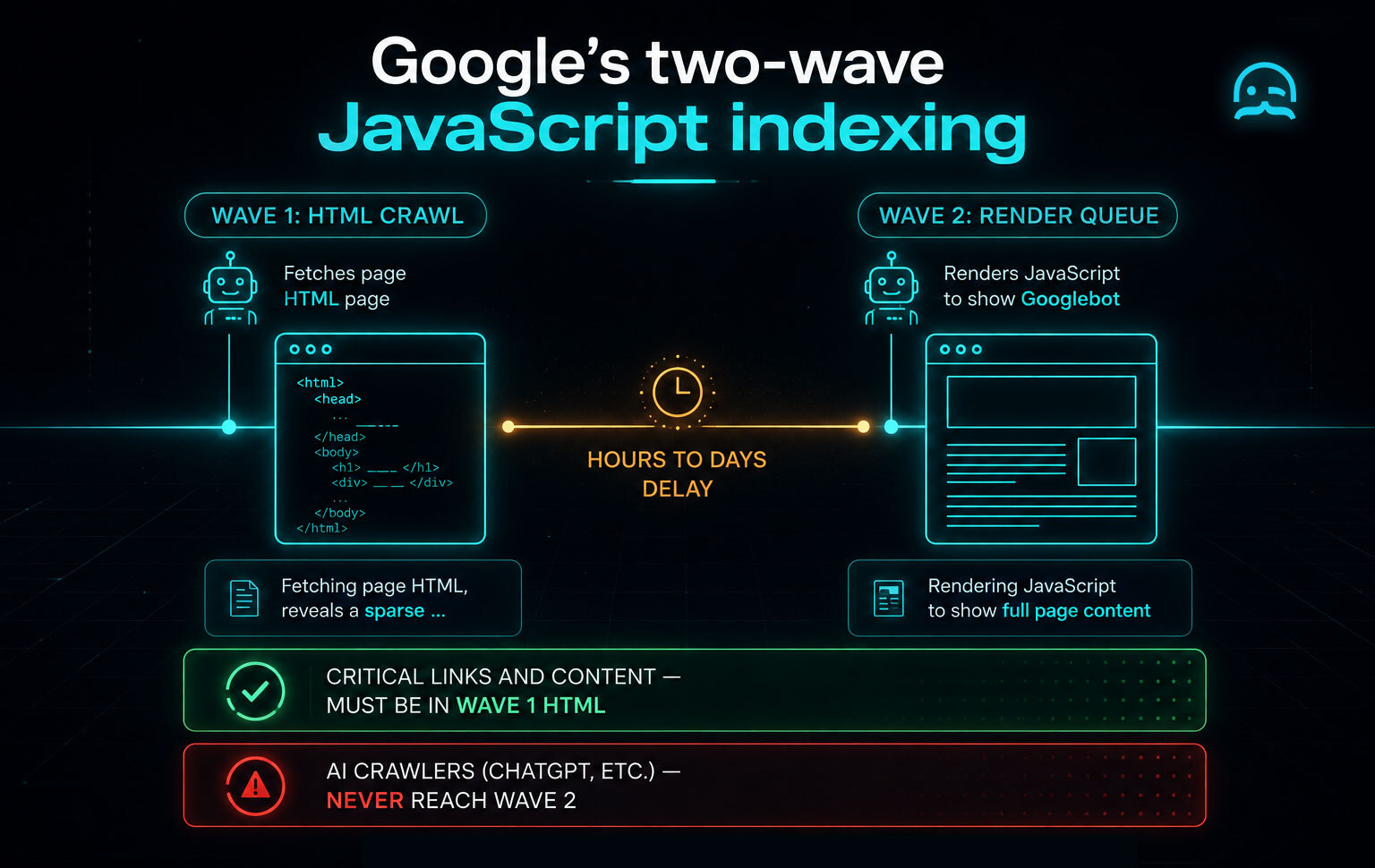
Wave 1: Googlebot fetches raw HTML and indexes what's in it: links, canonical tags, text.
Wave 2: Pages are queued for rendering. Google executes JavaScript and indexes the result. The delay between waves can be hours to days. During that gap, JavaScript-only content doesn't exist in Google's index.
Warning
Critical content and links should always be in the initial HTML. Navigation, canonical tags, and primary content should not depend on JavaScript to appear.
Learn more in Google Search Central — Understand JavaScript SEO Basics.
AI crawlers don't render at all
Bing renders selectively. Most AI crawlers (including ChatGPT and Perplexity) do not execute JavaScript at all. If your content only exists after rendering, those systems never see it. This matters for javascript crawling SEO: as AI-powered discovery grows, sites relying on CSR are invisible to it.
Practical fixes for site owners
- Server-side render critical content: title, meta description,
<h1>, body text, navigation links - Use real
<a href>links, not JavaScript click handlers - Static generation where possible to eliminate the rendering problem entirely
- Test with Google Search Console: the URL Inspection tool shows crawled vs. rendered HTML
For verifying what Googlebot sees on your own site, use a javascript enabled crawling setup with Playwright or scrapy-playwright.
Crawling vs scraping vs rendering — the terms explained
These three terms get conflated constantly, but they're distinct operations.
Crawling is discovering and following URLs by fetching a page, extracting its links, adding those links to a queue, and repeating. A crawler maps the structure of a site.
Scraping is extracting specific data from a page you've already fetched, such as pulling product names, prices, or article text from HTML.
Rendering is executing a page's JavaScript to build the final DOM, converting raw HTML + a JS bundle into the complete page a user sees.
A JavaScript crawler does all three. It follows links (crawling), executes JavaScript (rendering), and extracts data from the result (scraping). For a deeper look at the first two, see web crawling vs web scraping. The guide to web scraping with JavaScript covers extraction in depth, while our comparison of codex vs claude code shows how autonomous agents build and run browser automation scripts.
Frequently asked questions
Can Google crawl JavaScript?
Yes, but not immediately. Google indexes raw HTML first, then queues pages for rendering, introducing a delay of hours to days. Critical content should be in the initial HTML. Use Search Console's URL Inspection to verify what Google sees.
Do AI crawlers render JavaScript?
Most don't. ChatGPT, Perplexity, and similar AI crawlers send a plain HTTP request and process only the raw response. If your content requires JavaScript to appear, those systems never see it—which is why site architectures increasingly adopt what is llms.txt as a curated Markdown index for machine ingestion.
What is the difference between crawling and scraping?
Crawling discovers and follows URLs. Scraping extracts data from pages. JavaScript rendering is a separate step needed before either can succeed on JS-heavy sites.
Is JavaScript bad for SEO?
Not inherently, but relying on JavaScript for critical content creates risk. Google's rendering delay means JS-only content may be indexed days later. AI crawlers don't render at all. Serve critical content in the initial HTML.
What is the best tool for crawling JavaScript sites?
Playwright is the strongest choice for most developers. For large-scale crawls, Crawlee (JS) or Scrapy with scrapy-playwright (Python) adds queueing. For zero infrastructure, a managed cloud browser handles it. See Playwright vs Puppeteer and Playwright vs Selenium.
How do I crawl a React or Next.js site?
Check whether the site uses SSR or CSR. Run curl and grep for content: if present, no rendering needed. If you find only <div id="__next"></div>, use a headless browser. Also check the Network tab for JSON API calls you can hit directly.
Is JavaScript rendering always necessary?
No. Many sites expose the same data via a JSON API visible in the Network tab. Calling that API directly is faster and cheaper. Render selectively, targeting only pages where plain HTTP returns empty content.
Check for the underlying API first. Render only when you must. Use proper selector-based waits instead of fixed sleeps. Block unnecessary resources. Rendering costs 10–50x more per page, and that compounds fast at scale.
The best way to evaluate a web scraping solution is to test it on the websites that matter to you.
Try MrScraper with your own URLs and see how it performs before making a commitment.
Get 1,000 tokens to test MrScraper for free here.
Summarize this post
Open it in your assistant of choice with the prompt ready to send.
Take a Taste of Easy Scraping!

Find more insights here

Claude Code Competitor Pricing Research
Use Claude Code and MrScraper MCP to refresh public competitor pricing, normalize billing periods an…

Use MrScraper MCP to Compare Public SaaS Pricing and Plan Limits
Build a source-backed SaaS plan comparison using MrScraper MCP. Preserve prices, quotas, billing ter…

Build a Product Attribute Classifier with LangChain and MrScraper
Build a LangChain workflow that extracts product evidence with MrScraper, normalizes attributes and…