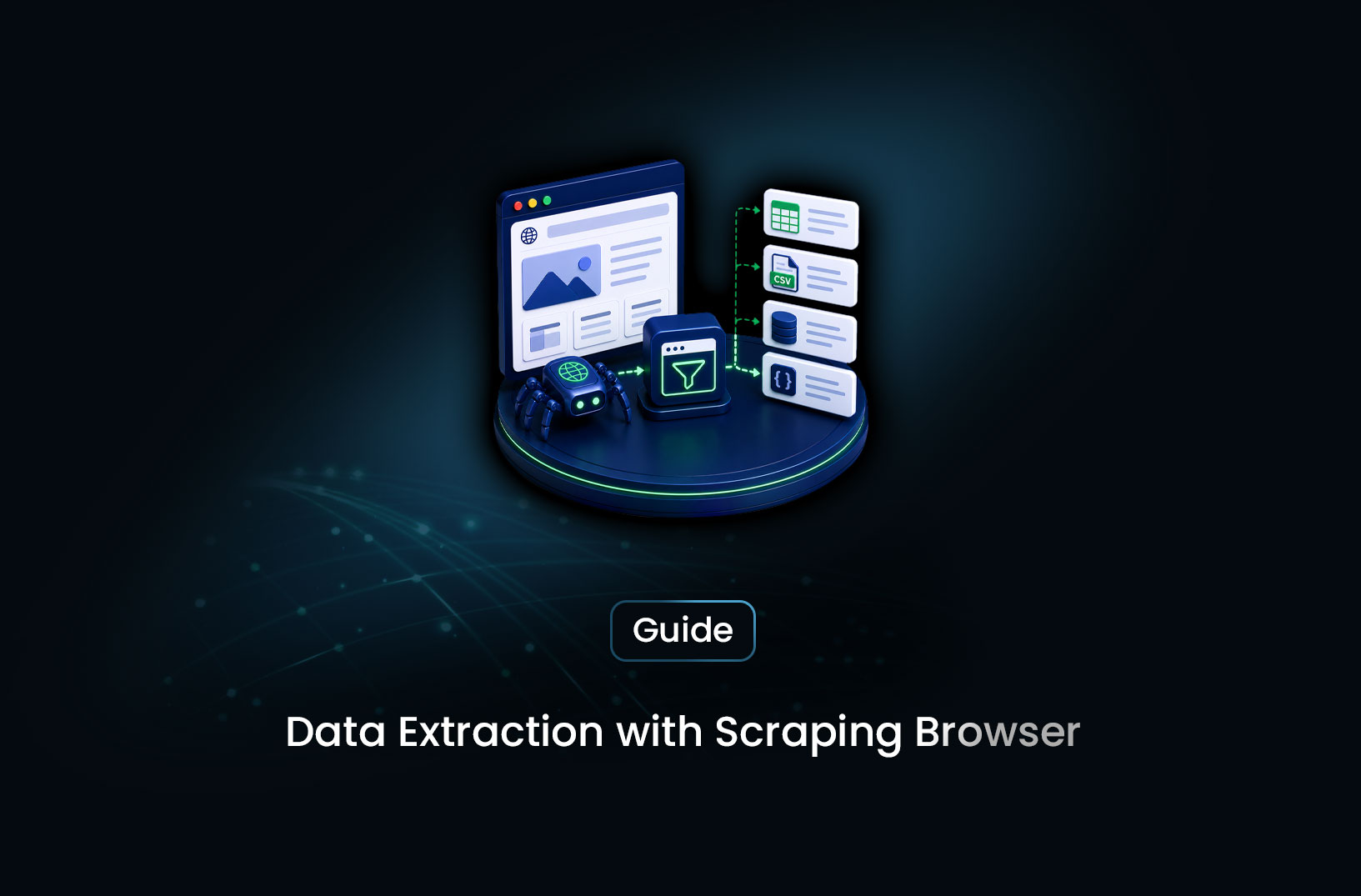
How to Extract Data From Pop-ups and Modals
Web ScrapingLearn how to extract data from pop-ups and modals using a scraping browser — detecting triggers, waiting for content, handling dismissals, and common patterns.
You've set up your scraper, navigated to the product page, and called page.inner_text() on the element you need — and you get nothing, because a cookie consent banner is blocking the page and a newsletter modal just appeared on top of it. Your selector is correct, your page rendering is working, but the interactive layer between your scraper and the content is getting in the way.
Extracting data from pop-ups and modals is one of the most practical browser automation challenges developers face. Modals and pop-ups are everywhere: cookie consent dialogs that must be dismissed before the page is usable, newsletter overlays that obscure content, lightbox galleries that only load image data after a click, comparison tables that appear inside a dialog when you select options, dynamic product details that load in a modal rather than a new page. Handling them correctly requires understanding how to detect their appearance, interact with their triggers, extract what's inside them, and dismiss them when they're blocking something else. This guide covers the full range of pop-up and modal scenarios with working Playwright patterns for each.
Table of Contents
- What Are Pop-ups and Modals in Web Scraping?
- How Pop-ups and Modals Work in a Browser
- Step-by-Step Guide: Handling Pop-ups and Modals With Playwright
- Common Challenges and Limitations
- Conclusion
- What We Learned
- FAQ
What Are Pop-ups and Modals in Web Scraping?
In the context of web scraping, pop-ups and modals fall into two categories based on what you need to do with them: blocking elements that need to be dismissed before you can access the underlying page content, and content-bearing elements that hold data you actually want to extract.
Blocking pop-ups are elements that overlay or interrupt the page without containing target data. Cookie consent banners (GDPR compliance notices), newsletter subscription overlays, notification permission prompts, age verification dialogs, and promotional offer pop-ups all fall into this category. Your scraper needs to detect them and dismiss them — clicking the accept or close button — before proceeding to extract from the page underneath.
Content-bearing modals are elements that display data you want to extract, triggered by a user interaction on the page. A product detail modal that opens when you click a quick-view button, a pricing table that appears in a lightbox, a comparison modal triggered by selecting checkboxes, an image gallery that opens in an overlay — all of these hold content that exists only inside the modal. To extract that content, your scraper needs to trigger the modal to open, wait for it to fully render, extract from inside it, and optionally close it before moving to the next item.
The technical distinction matters because the handling patterns are different. Blocking pop-ups need to be detected and dismissed early. Content-bearing modals need to be triggered, waited on, and read before being closed. A scraper that treats them identically — dismissing everything — misses the content in modals that contain target data.
How Pop-ups and Modals Work in a Browser
Understanding how modals are rendered clarifies why a scraping browser is the right tool and what your code needs to account for.
Most modals on modern web pages are constructed entirely with JavaScript and CSS. They don't exist in the server's HTML response — they're injected into the DOM when a trigger event occurs (page load for automatic pop-ups, user click for triggered modals) and removed or hidden when dismissed. A plain HTTP request to the page never sees them; they exist only in the live browser's rendered DOM, which is why a scraping browser that executes JavaScript is necessary for handling them.
The lifecycle of a typical automatic pop-up: the page loads → JavaScript runs → after a time delay or scroll threshold condition is met, the modal DOM element is injected into the document body → a CSS class is applied that makes it visible → user interaction (accepting, dismissing, or submitting) triggers a function that removes or hides the element.
The lifecycle of a trigger-based modal: user clicks a button → JavaScript intercepts the click event → a modal DOM element is injected or made visible → content is loaded (sometimes asynchronously) → the modal becomes ready for interaction or extraction.
For a scraper, what matters is: knowing when the modal has appeared (the element is in the DOM and visible), interacting with it correctly (clicking triggers, waiting for content), and confirming when it's been dismissed (the element is removed or hidden). Playwright's selector-based waiting methods handle this lifecycle reliably. According to Playwright's documentation on element waiting, Playwright automatically waits for elements to be attached to the DOM, visible, stable (not animating), enabled, and ready to receive actions before executing — which means page.click() and page.inner_text() on modal elements waits for those conditions to be met without requiring manual sleep calls.
Step-by-Step Guide: Handling Pop-ups and Modals With Playwright
Step 1: Detect and Dismiss Blocking Pop-ups on Page Load
Cookie banners and consent dialogs appear automatically on page load and need to be cleared before you can reliably interact with the underlying content. The key is checking whether they're present before assuming the main content is accessible.
from playwright.sync_api import sync_playwright, Page, TimeoutError as PlaywrightTimeout

def dismiss_cookie_banner(page: Page) -> bool:
    """
    Attempt to dismiss a cookie consent banner if one is present.
    Returns True if a banner was found and dismissed, False if none detected.
    Common selectors for major consent management platforms are included.
    """
    # Common cookie consent button selectors across different CMP platforms
    consent_selectors = [
        "button#onetrust-accept-btn-handler",     # OneTrust
        "button.accept-cookies",
        "button[data-testid='cookie-accept']",
        "button:has-text('Accept All')",
        "button:has-text('Accept all cookies')",
        "button:has-text('I Accept')",
        "button:has-text('Agree')",
        "#cookieConsentAccept",
        ".cookie-accept-btn",
    ]

    for selector in consent_selectors:
        try:
            # Check if the element exists and is visible — don't wait long
            button = page.wait_for_selector(selector, timeout=2_000, state="visible")
            if button:
                button.click()
                # Wait for the banner to disappear before proceeding
                page.wait_for_selector(selector, state="hidden", timeout=3_000)
                print(f"Dismissed consent banner with selector: {selector}")
                return True
        except PlaywrightTimeout:
            continue  # Try the next selector

    return False  # No banner found

def dismiss_newsletter_popup(page: Page) -> bool:
    """
    Dismiss newsletter or promotional pop-ups by clicking the close button.
    Typically appears after a delay or scroll — check after a brief wait.
    """
    close_selectors = [
        "button.modal-close",
        "button[aria-label='Close']",
        "button[aria-label='close']",
        ".popup-close",
        ".modal__close",
        "button:has-text('No thanks')",
        "button:has-text('×')",
        "[data-dismiss='modal']",
    ]

    # Newsletter popups often have a delay trigger — wait a moment
    page.wait_for_timeout(2_000)

    for selector in close_selectors:
        try:
            button = page.wait_for_selector(selector, timeout=2_000, state="visible")
            if button:
                button.click()
                print(f"Dismissed pop-up with selector: {selector}")
                return True
        except PlaywrightTimeout:
            continue

    return False
Step 2: Trigger and Extract From Content-Bearing Modals
For modals that open when you click a specific element — quick-view buttons, comparison triggers, detail panels — you need to click the trigger, wait for the modal to be ready, and extract from inside it before closing.
def extract_from_triggered_modal(page: Page,
                                  trigger_selector: str,
                                  modal_selector: str,
                                  data_selectors: dict[str, str]) -> dict:
    """
    Click a trigger element, wait for the modal to appear,
    and extract named fields from inside the modal.

    Args:
        trigger_selector: CSS selector for the element that opens the modal
        modal_selector: CSS selector for the modal container element
        data_selectors: dict mapping field names to CSS selectors inside the modal

    Returns:
        dict of extracted field values
    """
    # Click the trigger element
    page.click(trigger_selector)

    # Wait for the modal to appear and stabilize
    modal = page.wait_for_selector(modal_selector, state="visible", timeout=10_000)
    if not modal:
        return {}

    # Optional: wait for any loading indicators inside the modal to disappear
    try:
        page.wait_for_selector(f"{modal_selector} .loading-spinner",
                               state="hidden", timeout=5_000)
    except PlaywrightTimeout:
        pass  # No loading spinner — proceed

    # Extract each named field from inside the modal
    extracted = {}
    for field_name, field_selector in data_selectors.items():
        try:
            full_selector = f"{modal_selector} {field_selector}"
            element = page.query_selector(full_selector)
            extracted[field_name] = element.inner_text().strip() if element else None
        except Exception as e:
            extracted[field_name] = None
            print(f"Could not extract {field_name}: {e}")

    return extracted

# Example: extracting product details from a quick-view modal
def scrape_product_quick_view(page: Page, product_card_selector: str) -> list[dict]:
    """
    Click the quick-view button on each product card and extract detail data.
    """
    results = []
    product_cards = page.query_selector_all(product_card_selector)

    for card in product_cards:
        try:
            # Scroll the card into view before clicking (avoids out-of-viewport issues)
            card.scroll_into_view_if_needed()

            # Hover to reveal the quick-view button, then click it
            card.hover()
            quick_view_btn = card.query_selector("button.quick-view, [data-action='quick-view']")
            if not quick_view_btn:
                continue

            data = extract_from_triggered_modal(
                page,
                trigger_selector=f"button.quick-view",
                modal_selector="div.product-modal, [role='dialog']",
                data_selectors={
                    "name": "h2.product-title",
                    "price": "span.price",
                    "description": "p.product-description",
                    "sku": "span[data-field='sku']",
                }
            )
            results.append(data)

            # Close the modal before moving to the next card
            close_button = page.query_selector("[aria-label='Close'], .modal-close")
            if close_button:
                close_button.click()
                page.wait_for_selector("div.product-modal", state="hidden", timeout=3_000)

        except Exception as e:
            print(f"Error processing card: {e}")
            continue

    return results
Step 3: Handle Modals With Async Content Loading
Some modals don't render their full content immediately — they show a loading state first, then fetch and display data through an API call. Extracting too early gets you the loading skeleton, not the actual content.
def extract_from_async_modal(page: Page,
                               trigger_selector: str,
                               modal_selector: str,
                               content_ready_selector: str,
                               data_selectors: dict[str, str]) -> dict:
    """
    Handle modals that load their content asynchronously after opening.
    Waits for a 'content ready' element to appear before extracting.
    """
    # Trigger the modal
    page.click(trigger_selector)

    # Wait for the modal container to appear
    page.wait_for_selector(modal_selector, state="visible", timeout=10_000)

    # Wait for the specific element that signals content is loaded
    # This is typically a key piece of content — a price, a title, or a specific field
    try:
        page.wait_for_selector(
            f"{modal_selector} {content_ready_selector}",
            state="visible",
            timeout=15_000
        )
    except PlaywrightTimeout:
        print("Content did not load within timeout — extracting what's available")

    # Extract after content is ready
    extracted = {}
    for field_name, field_selector in data_selectors.items():
        element = page.query_selector(f"{modal_selector} {field_selector}")
        extracted[field_name] = element.inner_text().strip() if element else None

    return extracted
Step 4: Handle Shadow DOM Modals
Some modern web components render their modal content inside a Shadow DOM — a sandboxed DOM tree that's hidden from standard query_selector() calls. Playwright handles shadow DOM using the >>> combinator in selectors:
def extract_from_shadow_dom_modal(page: Page,
                                   trigger_selector: str,
                                   shadow_host_selector: str,
                                   content_selector: str) -> str | None:
    """
    Extract content from a modal rendered inside a Shadow DOM.
    Uses Playwright's deep shadow-piercing selector syntax.
    """
    page.click(trigger_selector)

    # Playwright pierces shadow DOM with >>> in the selector
    # Format: "shadow-host-selector >>> inner-selector"
    piercing_selector = f"{shadow_host_selector} >>> {content_selector}"

    try:
        element = page.wait_for_selector(piercing_selector, timeout=10_000)
        return element.inner_text().strip() if element else None
    except PlaywrightTimeout:
        print(f"Shadow DOM content not found: {piercing_selector}")
        return None
Step 5: Build a Robust Page Preparation Wrapper
Wrap the dismissal steps into a single page preparation function that runs before any content extraction:
def prepare_page_for_scraping(page: Page, url: str) -> bool:
    """
    Navigate to a URL and clear all blocking overlays before content extraction.
    Returns True if the page is ready for scraping.
    """
    page.goto(url, wait_until="networkidle", timeout=30_000)

    # 1. Dismiss cookie banner immediately
    dismiss_cookie_banner(page)

    # 2. Wait briefly and dismiss any timed pop-ups
    page.wait_for_timeout(2_500)
    dismiss_newsletter_popup(page)

    # 3. Confirm the main content is accessible
    try:
        page.wait_for_selector("main, #content, [role='main']",
                               state="visible", timeout=5_000)
        return True
    except PlaywrightTimeout:
        print(f"Main content not accessible after pop-up dismissal for {url}")
        return False

# Full usage pattern
with sync_playwright() as pw:
    browser = pw.chromium.launch(headless=True)
    page = browser.new_page()

    if prepare_page_for_scraping(page, "https://example.com/products"):
        # Extract from the now-accessible page
        page_content = page.content()
        # Or trigger content modals and extract from them

    browser.close()
Common Challenges and Limitations
Cookie consent implementations vary widely across CMP platforms. OneTrust, Cookiebot, Quantcast, TrustArc, and custom implementations all use different element IDs, class names, and DOM structures. No single selector catches all of them. The approach of maintaining a curated list of known selectors across the most common platforms — as shown in Step 1 — works for the majority of sites, but sites using custom implementations require site-specific selectors. Building your dismissal logic to try multiple selectors and move on gracefully when none match is more robust than expecting one selector to work everywhere.
Timed and scroll-triggered pop-ups create race conditions. Pop-ups that appear after a 5-second delay or after scrolling 50% down the page can appear mid-scrape rather than at page load. If your extraction logic runs before the pop-up fires, it may succeed — and then subsequent navigations on the same page context may encounter a newly appeared pop-up that blocks further interaction. Building your page preparation loop to re-check for blocking overlays between major extraction steps, rather than only once at page load, handles this more reliably.
Modals that prevent background scrolling affect subsequent interactions. Some modal implementations apply overflow: hidden to the <body> or <html> element when open, preventing scroll-based lazy loading from triggering behind the modal. If your scraper needs to scroll content after dismissing a modal and scrolling doesn't work, check whether the overflow style was properly restored. Playwright's page.evaluate() can check and reset this if needed:
# Reset scroll lock if a modal left it in place
page.evaluate("document.body.style.overflow = 'auto'")
Shadow DOM modals require different selector syntax. Web components increasingly encapsulate their modal implementations in Shadow DOM, which standard CSS selectors can't pierce. As shown in Step 4, Playwright's >>> combinator handles this — but identifying that you're dealing with a Shadow DOM modal (versus a standard DOM one) requires inspecting the page in DevTools. If query_selector() on a visually present element returns null, Shadow DOM encapsulation is often the reason.
Managed scraping browsers handle pop-up states differently across session configurations. When using a managed scraping API like MrScraper rather than self-hosted Playwright, the browser session's cookie and storage state may or may not have prior consent signals stored — affecting whether cookie banners appear at all, appear differently, or are auto-dismissed by stored preferences. For consistent pop-up handling across sessions, explicitly dismiss rather than relying on stored consent state, which may vary by proxy IP, geographic routing, or session freshness. More at https://mrscraper.com.
Conclusion
Pop-ups and modals are a near-universal part of the modern web, and handling them correctly is what separates a scraper that works under controlled conditions from one that works reliably in production. The patterns in this guide cover the four scenarios you'll encounter most often: automatic blocking pop-ups on page load, newsletter overlays with a time delay, content-bearing modals triggered by user interaction, and async modals that load their content after appearing.
The underlying principle is always the same: know what the modal is doing in the DOM, wait for it to be in the correct state before interacting, and confirm the interaction worked before proceeding. Playwright's built-in actionability checks handle much of the timing complexity automatically — your code's job is specifying what to wait for, not how long to wait blindly.
What We Learned
- Pop-ups fall into two categories that require different handling: Blocking pop-ups (cookie banners, newsletter overlays) need to be dismissed before content extraction; content-bearing modals need to be triggered and read before being closed.
- Playwright's built-in actionability checks handle most timing issues:
wait_for_selectorwith the appropriatestateparameter waits for elements to be visible, stable, and ready — eliminating the need for arbitrary sleep calls in most modal workflows. - Maintaining a multi-selector cookie dismissal list is more robust than a single selector: CMP platforms vary widely; trying a curated list of known selectors and moving on gracefully when none match handles the variety in production.
- Async modal content requires a content-ready sentinel element: Don't extract immediately after the modal container appears — wait for a specific element that signals the async content has finished loading.
- Shadow DOM encapsulation blocks standard selectors: Playwright's
>>>deep combinator pierces Shadow DOM boundaries; standardquery_selector()returns null for shadow-encapsulated elements that are visually present. - Page state cleanup matters between modal interactions: Scroll locks, z-index stacking, and DOM artifacts left by poorly implemented modal dismissals can affect subsequent page interactions — add explicit state cleanup when you encounter these.
FAQ
Why can't I extract text from a pop-up using a plain HTTP scraper?
Pop-ups and modals are almost always generated by JavaScript executing in the browser after the initial HTML loads — they don't exist in the server's HTML response. A plain HTTP request only retrieves the initial HTML; it never executes the JavaScript that creates, injects, and displays the modal. A scraping browser (Playwright, Puppeteer, or a managed browser API) executes JavaScript as a real browser does, making the modal content visible in the live DOM where it can be extracted.
How do I know which selector to use for the close button on a cookie banner?
Open the target page in Chrome or Firefox, let the cookie banner appear, then right-click the "Accept" or close button and select "Inspect." The DevTools panel highlights the element — look at its
id,class, anddata-*attributes. Try theidfirst (it's most specific and stable); fall back toclassor text content selectors if noidis present. For sites using major CMPs like OneTrust, the element IDs are documented and consistent across all sites using that platform.How do I handle a modal that loads its content after it appears?
Use a content-ready sentinel: instead of extracting immediately after the modal container becomes visible, wait for a specific element inside the modal that only appears when the content has finished loading — a price element, a title, or any field you know will be present only when async loading completes. Use
page.wait_for_selector(f"{modal_selector} {content_element_selector}", state="visible")before extracting.Can I extract data from a modal using
requestsandBeautifulSoup?Only if the modal content is present in the initial server-rendered HTML (which is rare — most modals are JavaScript-generated). To confirm whether this is the case, view the page source directly (Ctrl+U in browser) and search for the text you see inside the modal. If it's in the source,
requests+BeautifulSoupwill work. If it's not in the source (only visible in the rendered browser), a scraping browser is required.How do I scrape multiple product detail modals on the same page?
Loop through each trigger element (the buttons that open each modal), click each one, extract the modal content, close the modal, confirm it's closed, then move to the next trigger. The sequence matters — confirm the previous modal is fully dismissed (
state="hidden") before clicking the next trigger, because some implementations conflict when two modals overlap. Scroll each trigger into view before clicking to avoid issues with off-viewport elements.
Summarize this post
Open it in your assistant of choice with the prompt ready to send.
Take a Taste of Easy Scraping!

Find more insights here
The Ultimate Web Crawlers List: 15 Tools for Every Data Need
Compare the best web crawlers for 2026. Learn the difference between open-source, managed APIs, and…
Web Scraping MCP Server: Giving AI Agents Direct Access to Live Web Data
Learn how a Web Scraping MCP Server gives AI agents live web access while reducing token costs by 87…
Scaling E-commerce Competitive Intelligence with Automated Data Harvesting
Scale e-commerce data harvesting with residential proxies and AI. Learn how modern data extraction s…