Selenium Web Scraping: A Technical Guide with Use Case
Web ScrapingMaster Selenium for dynamic web scraping. Learn technical setup, browser automation, and best practices for extracting data from JavaScript-driven websites.
Selenium is a top scraping tool for dynamic websites because it runs JavaScript and acts like a real user. It allows developers to handle asynchronous content, click buttons, and navigate complex workflows that static parsers cannot access.
What is Selenium Web Scraping?
Selenium web scraping involves using Selenium, a powerful browser automation tool, to extract data from dynamic websites. Unlike basic web scraping tools that only read static HTML, Selenium can work with JavaScript websites. It simulates real user actions.
Key Features of Selenium
- Browser Automation: Interact with web elements like buttons, forms, and dropdowns.
- JavaScript Execution: Handle dynamic content that loads asynchronously.
- Cross-Browser Support: Works with Chrome, Firefox, Safari, and other browsers.
- Headless Mode: Perform scraping tasks without displaying the browser GUI.
- Extensive APIs: Offers APIs for scripting and integration with other tools.
Why Use Selenium for Web Scraping?
Selenium remains a top choice for developers seeking the best scraping browser for dynamic sites. It gives you strong control over web sessions. It does this by automating real browser instances. This is important for complex data extraction tasks.
- Accessing data on pages that require JavaScript execution to render content.
- Handling complex navigation flows such as multi-step login forms and infinite scroll pagination.
- Executing tasks that must accurately mimic human interactions like clicks and hovering.
- Interacting with websites that employ advanced anti-scraping measures to detect automated requests.
Comparing Modern Browsers for Dynamic Data
Selecting a browser for dynamic sites involves balancing resource consumption against API maturity.
from playwright.sync_api import sync_playwright

with sync_playwright() as p:
    browser = p.chromium.launch(headless=True)
    page = browser.new_page()
    page.goto('https://example.com')
    print(page.title())
    browser.close()
| Feature | Selenium | Playwright | Puppeteer |
|---|---|---|---|
| Protocol | WebDriver | CDP / WebSockets | CDP |
| Speed | Moderate | High | High |
| Language Support | Java, Python, C#, JS | JS, Python, Java, .NET | Node.js |
For enterprise-scale automation, providers like ScraperAPI, ScrapingBee, Bright Data, Apify, and Oxylabs offer managed browsers. These services handle complex headers and bypass fingerprint checks automatically.
Technical Setup
Follow these steps to configure your environment for Selenium web scraping.
Setting Up Selenium for Web Scraping
Follow these steps to set up Selenium for web scraping:
1. Install Selenium Library
Use pip to install Selenium:
pip install selenium
2. Download a WebDriver
- Download the appropriate WebDriver for your browser:
- Chrome: ChromeDriver
- Firefox: GeckoDriver
- Edge: EdgeDriver
- Safari: SafariDriver (pre-installed on macOS).
- Make sure the WebDriver version matches your browser version.
- Place the WebDriver executable in a directory included in your system's
PATH. - Windows: Use "Environment Variables" in system settings to add the WebDriver path to your
PATH. - macOS/Linux: Add the WebDriver path to your shell configuration file, such as
.bashrcor.zshrc.
Automating WebDriver Installation and Pathing
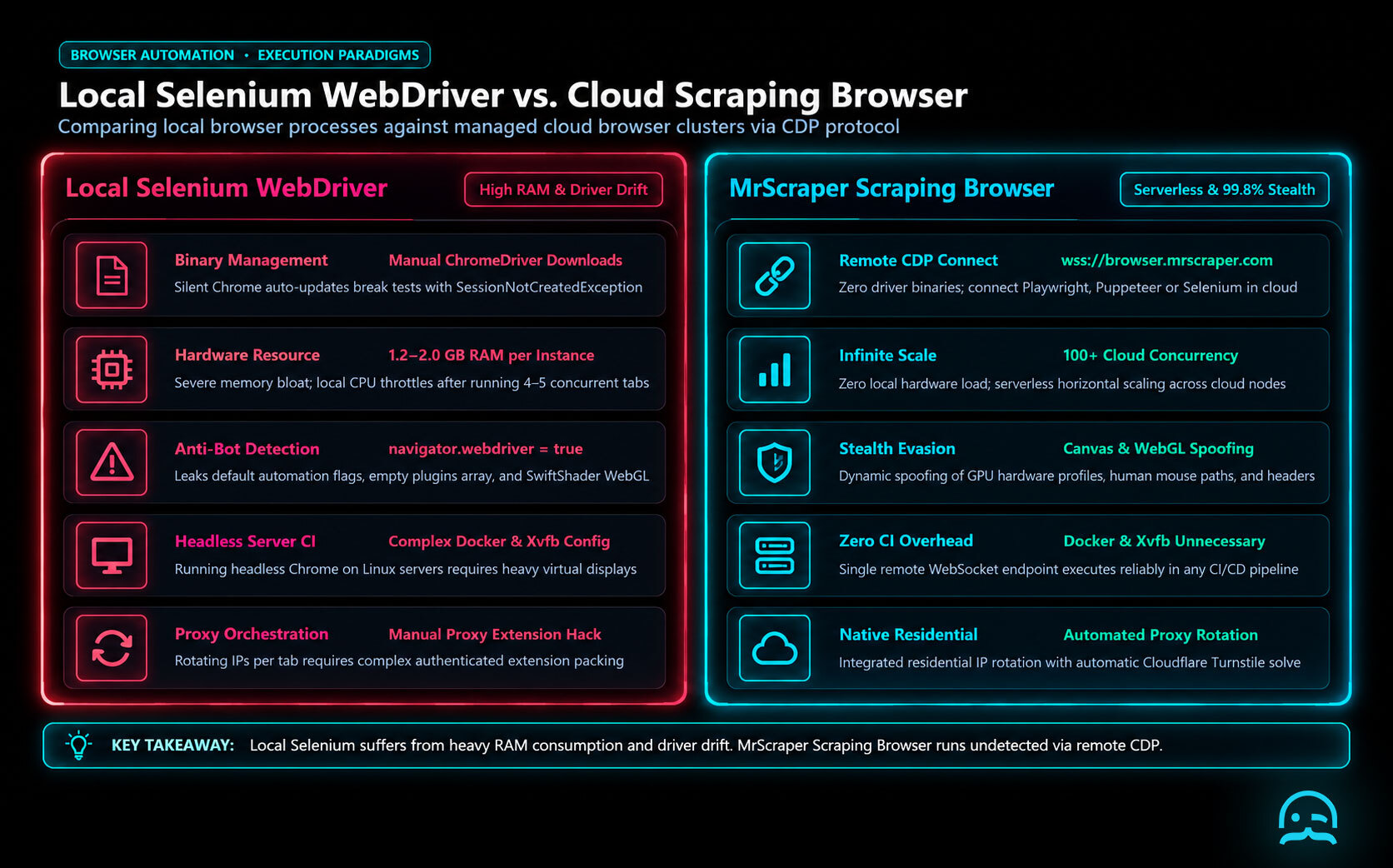
Manual path management for drivers is often brittle because it breaks during browser auto-updates.
from selenium import webdriver
from selenium.webdriver.chrome.service import Service
from webdriver_manager.chrome import ChromeDriverManager

service = Service(ChromeDriverManager().install())
driver = webdriver.Chrome(service=service)

driver.get("https://example.com")
driver.quit()
For heavy workloads, providers like Bright Data, ScrapingBee, and Oxylabs offer managed browsers. They handle these dependencies on the server side. For further study on efficient automation, consult the Selenium Documentation on Service classes.
Basic Selenium Script
Below is an example of a simple Selenium web scraping script:
from selenium import webdriver
from selenium.webdriver.common.by import By
from selenium.webdriver.chrome.service import Service
from selenium.webdriver.chrome.options import Options

# Set up Chrome options for headless mode
chrome_options = Options()
chrome_options.add_argument("--headless")

# Path to the ChromeDriver
service = Service("path/to/chromedriver")

# Initialize the WebDriver
browser = webdriver.Chrome(service=service, options=chrome_options)

# Navigate to a website
browser.get("https://example.com")

# Locate an element and extract text
element = browser.find_element(By.TAG_NAME, "h1")
print("Page Title:", element.text)

# Close the browser
browser.quit()
Explanation:
- Options: Configures the browser to run in headless mode for faster performance.
- WebDriver: Controls the browser.
- Element Interaction: Finds elements using various locators like By.ID, By.CLASS_NAME, etc.
- Browser Cleanup: Ensures the browser closes after the task is completed.
Use Case: Scraping Product Details from an E-Commerce Website
Problem
You want to scrape product details, including name, price, and ratings, from a dynamic e-commerce website.
Solution
Using Selenium, you can handle JavaScript-rendered content and extract the required information.
Step-by-Step Implementation
1. Set Up Selenium
Follow the installation steps outlined earlier.
2. Script to Scrape Data
from selenium import webdriver
from selenium.webdriver.common.by import By
from selenium.webdriver.chrome.service import Service
from selenium.webdriver.chrome.options import Options

# Configure headless browser
chrome_options = Options()
chrome_options.add_argument("--headless")
service = Service("path/to/chromedriver")

# Initialize WebDriver
browser = webdriver.Chrome(service=service, options=chrome_options)

# Navigate to the e-commerce site
browser.get("https://example-ecommerce.com/products")

# Extract product details
products = browser.find_elements(By.CLASS_NAME, "product-card")
for product in products:
    name = product.find_element(By.CLASS_NAME, "product-name").text
    price = product.find_element(By.CLASS_NAME, "product-price").text
    rating = product.find_element(By.CLASS_NAME, "product-rating").text
    print(f"Name: {name}, Price: {price}, Rating: {rating}")

# Close the browser
browser.quit()
3. Monitor and Handle Errors
Add exception handling to manage potential errors like missing elements or timeouts.
Result
The script extracts product details dynamically rendered by JavaScript, bypassing challenges faced by static HTML parsers.
Best Practices for Selenium Web Scraping
- Use Proxies: Employ rotating proxies to prevent IP bans and bypass geo-restrictions during high-volume scraping tasks.
- Add Delays: Introduce random sleep intervals between automated actions to mimic human browsing behavior and avoid detection.
- Monitor Browser Updates: Regularly verify that your WebDriver version aligns with the installed browser version to maintain stability.
- Respect Website Policies: Adhere strictly to robots.txt guidelines and terms of service to avoid overloading target servers.
Conclusion
Selenium is a flexible tool for scraping dynamic websites. It helps with tasks that need interaction with JavaScript content. You can achieve efficient and reliable web scraping by combining Selenium with robust practices like proxy integration.
For advanced scraping needs, consider using MrScraper. It simplifies scraping workflows and integrates seamlessly with modern web automation tools.
What We Learned
Mastering dynamic scraping requires balancing resource efficiency with anti-detection strategies. While Selenium provides total control, managing complex sessions often necessitates external infrastructure to maintain high success rates without triggering automated blocks.
- Prioritize Explicit Waits over static sleep commands to reduce script latency.
- Implement headless Chrome flags to decrease server-side memory consumption.
- Rotate residential proxies through providers like Bright Data or Oxylabs to bypass rate limits.
- Utilize stealth plugins to mask WebDriver signatures from advanced bot detection systems.
from selenium.webdriver.common.by import By
from selenium.webdriver.support.ui import WebDriverWait
from selenium.webdriver.support import expected_conditions as EC

# Efficiently waiting for a specific dynamic element
wait = WebDriverWait(driver, 10)
element = wait.until(EC.presence_of_element_id("dynamic-content"))
Streamline Your Automation Workflow
Explore our quickstart resources to learn how to add high-performance infrastructure to your data extraction and automation scripts.
Frequently asked questions
What makes Selenium suitable for dynamic web scraping?
Selenium is effective because it automates real browsers. It can render JavaScript, handle AJAX requests, and interact with DOM elements like a user. This is essential for modern, dynamic web applications.
Does Selenium support headless mode for scraping?
Yes, Selenium supports headless mode for browsers like Chrome and Firefox. This lets the scraping script run without a visible user interface, using fewer resources and running faster.
How do you handle IP bans when using Selenium?
To avoid IP bans and rate limits, use proxies. Add random delays between actions to mimic normal human browsing.
Now that you know how it works, why not try it yourself?
With MrScraper, you can start collecting web data without building or maintaining your own scraping infrastructure. See how easily you can turn websites into usable data.
Get 1,000 free tokens and start scraping here.
Summarize this post
Open it in your assistant of choice with the prompt ready to send.
Take a Taste of Easy Scraping!

Find more insights here

Claude Code Competitor Pricing Research
Use Claude Code and MrScraper MCP to refresh public competitor pricing, normalize billing periods an…
Use MrScraper MCP to Compare Public SaaS Pricing and Plan Limits
Build a source-backed SaaS plan comparison using MrScraper MCP. Preserve prices, quotas, billing ter…
Build a Product Attribute Classifier with LangChain and MrScraper
Build a LangChain workflow that extracts product evidence with MrScraper, normalizes attributes and…