How to Scrape Amazon with Node.js: A Beginner-Friendly Guide
Web ScrapingLearn how to scrape Amazon with Node.js and Puppeteer, including project setup, dynamic scrolling, product extraction, pagination, JSON saving, and responsible scraping considerations.
How to Scrape Amazon with Node.js: A Beginner-Friendly Guide shows how to use Node.js and Puppeteer. It covers scrolling, product extraction, and pagination. It also explains how to save data as JSON. It considers CAPTCHA, laws, and website terms.
1. Preparing Your Node.js Environment
How to Scrape Amazon with Node.js: A Beginner-Friendly Guide starts with Node.js and Puppeteer. This tutorial covers the environment setup, scrolling, pagination, code examples, and practical techniques for extracting product data safely and efficiently.
Modern businesses use data to monitor competitors, understand customer behavior, study market trends, and build internal tools. Amazon contains a vast amount of product information, but collecting it manually is slow, repetitive, and impractical at scale.
Web scraping automates that work. A scraper visits a website, reads its structure, and extracts the information you specify. Instead of copying product names or prices by hand, you can let a program process the pages for you.
This tutorial uses Node.js with Puppeteer, a browser automation tool, to demonstrate the process. The example focuses on Amazon’s Health & Beauty category, which includes products such as skincare, supplements, and cosmetics. Its varied listings help demonstrate how a scraper can handle dynamic product pages and different layouts.
Before writing any scraping code, install Node.js from the official Node.js website. Node.js provides the runtime, while npm, which is included with the installation, manages the packages used by the project.
node --version
npm --version
If both commands print a version number, your Node.js setup is ready. You can start the project setup and scraper work next.
2. Setting Up Your Project
Create a project folder and initialize a Node.js project, then install Puppeteer Core with these commands. Puppeteer Core uses an existing Chrome or Chromium installation on your system, so npm does not download another browser.
mkdir amazon-scraper
cd amazon-scraper
npm init -y
npm install puppeteer-core
How to Scrape Amazon with Node.js: A Beginner-Friendly Guide
Requires a browser path when using puppeteer-core, while puppeteer normally supplies a compatible browser.
Set executablePath only when you use puppeteer-core or a custom Chrome installation. This pattern checks an environment variable and fails with a useful message instead of producing an unclear launch error.
const puppeteer = require('puppeteer-core');

const executablePath = process.env.CHROME_PATH;

if (!executablePath) {
  throw new Error('Set CHROME_PATH to your Chrome or Chromium executable.');
}

const browser = await puppeteer.launch({
  headless: false,
  executablePath,
});

// Reuse the browser for your existing scraping workflow.
await browser.close();
If you install puppeteer instead, remove the executablePath option and launch the bundled browser with puppeteer.launch().
3. Creating the Scraper File
Create a file named main.js for the scraper. It will launch Chrome or Chromium, navigate to Amazon, scroll to load dynamically rendered content, extract product titles and prices, move through search-result pages, and save the collected results as JSON. Puppeteer is a suitable choice because Amazon relies heavily on dynamic rendering.
touch main.js
4. Writing the Amazon Scraper (Complete Code)
How to Scrape Amazon with Node.js: A Beginner-Friendly Guide starts with a full Puppeteer script. It opens a search page and scrolls through results. It extracts titles and prices from each result. It follows page links and saves the output as JSON.
const puppeteer = require("puppeteer-core");
const fs = require("fs");

let browser = null;
let page = null;
let all = [];

// Save scraped data.
function saveJSON() {
  fs.writeFileSync("results.json", JSON.stringify(all, null, 2));
  console.log("Saved results to results.json");
}

// Close the browser and save collected items on interruption.
async function finishAndExit() {
  console.log("\nFinalizing scraper...");
  console.log("Total items collected:", all.length);
  saveJSON();

  try {
    if (browser) await browser.close();
  } catch {}
  process.exit(0);
}

process.on("SIGINT", finishAndExit);

(async () => {
  browser = await puppeteer.launch({
    headless: false,
    executablePath: puppeteer.executablePath(),
    args: [
      "--disable-http2",
      "--disable-features=IsolateOrigins,site-per-process",
      "--no-sandbox",
      "--disable-setuid-sandbox"
    ]
  });

  page = await browser.newPage();
  await page.setUserAgent(
    "Mozilla/5.0 (X11; Linux x86_64) AppleWebKit/537.36 (KHTML, like Gecko) Chrome/120 Safari/537.36"
  );

  const startUrl = "https://www.amazon.com/s?k=health+and+beauty";
  console.log("Opening:", startUrl);
  await page.goto(startUrl, { waitUntil: "networkidle2", timeout: 90000 });

  const scrapePage = async () => {
    await page.evaluate(async () => {
      await new Promise(resolve => {
        let total = 0;
        const distance = 400;
        const timer = setInterval(() => {
          window.scrollBy(0, distance);
          total += distance;
          if (total >= document.body.scrollHeight) {
            clearInterval(timer);
            resolve();
          }
        }, 200);
      });
    });

    return page.$$eval(
      "div[data-asin][data-component-type=\"s-search-result\"], " +
        "div[data-asin].s-result-item, " +
        "div.puis-card-container[data-asin]",
      nodes => nodes.map(node => ({
        title:
          node.querySelector("h2 a span")?.textContent?.trim() ||
          node.querySelector("span.a-text-normal")?.textContent?.trim() ||
          null,
        price: node.querySelector(".a-price .a-offscreen")?.textContent?.trim() || null
      }))
    );
  };

  let limit = 10;

  while (limit-- > 0) {
    console.log("\nScraping current page...");
    const items = await scrapePage();
    all.push(...items);

    const current = await page.$eval(
      "span.s-pagination-selected",
      element => parseInt(element.textContent.trim(), 10)
    ).catch(() => null);

    if (!current) break;

    const nextHref = await page.$eval(
      `a.s-pagination-item.s-pagination-button[aria-label="Go to page ${current + 1}"]`,
      element => element.href
    ).catch(() => null);

    if (!nextHref) break;

    await page.goto(nextHref, { waitUntil: "networkidle2", timeout: 90000 });
  }

  await finishAndExit();
})();
Step-by-Step Explanation
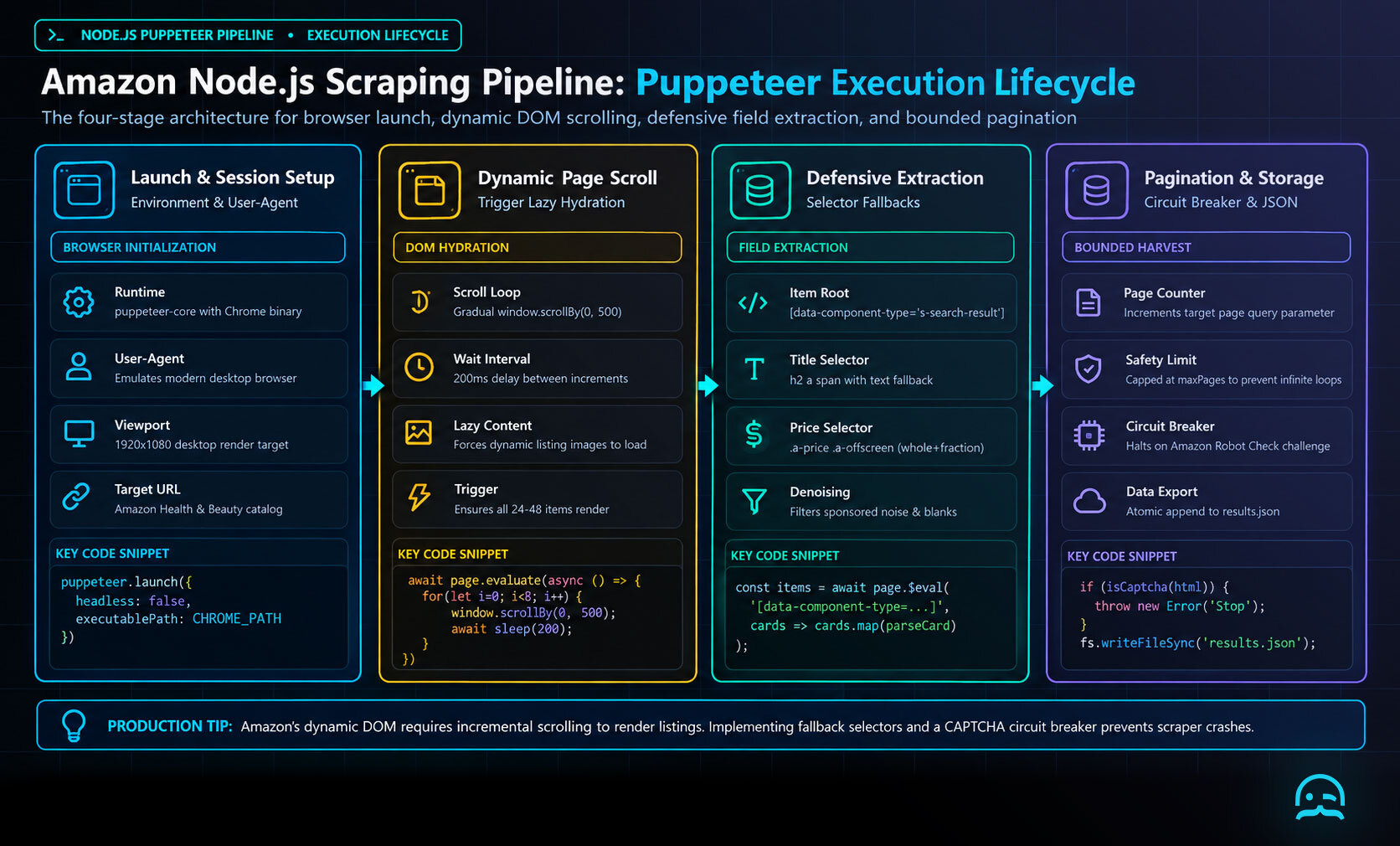
The next subsections explain what each scraper block does, from setup and browser control to scrolling. They also cover product extraction, pagination, safety limits, and execution. Each topic can be expanded with code.
Top-Level Imports
The scraper imports Puppeteer for browser automation and Node.js file-system utilities for saving collected data.
Save Helper
The save helper writes all scraped product results to results.json, preserving the collected data for later use.
Graceful Shutdown
Handles CTRL+C gracefully. The scraper saves collected results before it exits. This prevents data loss if a run is interrupted.
Browser Launch
The browser launches Chrome or Chromium with safe defaults and anti-detection settings before the scraper navigates to the Amazon page.
User-Agent Spoofing
Set a realistic User-Agent header to help avoid basic bot-detection issues when requesting Amazon pages.
Scrolling Logic
Scrolls slowly through the Amazon results page, giving dynamically loaded product listings enough time to render before extraction begins.
Product Extraction
The scraper gets each product’s title and price using several selectors. This handles Amazon layout changes without changing the extraction workflow.
Pagination
After extracting products, read the current page number. Build the next Amazon results URL by adding one to it. Navigate to the new URL and repeat the extraction until no next page remains.
Safety Limit
Set a maximum page limit so the scraper stops safely instead of looping indefinitely.
5. Running the Scraper
From your project folder, run the scraper:
node main.js
A browser opens while the scraper scrolls, loads data, and saves the collected results to:
results.json
You can stop it anytime with CTRL+C. Progress already saved to the file remains available.
Quick Tips & Notes
During development, set headless to false so you can observe the browser. Some sites block default headless browsers, so provide an appropriate user agent to help avoid those blocks. For larger scraping jobs, rotating proxies are recommended, and partial results should be saved regularly when processing multiple pages. Amazon may present CAPTCHAs, so handle them responsibly rather than attempting to bypass them. Always follow applicable local laws and the website’s terms of service.
How to Scrape Amazon with Node.js: A Beginner-Friendly Guide
How to Scrape Amazon with Node.js: A Beginner-Friendly Guide should include a circuit breaker for CAPTCHA pages. It should stop the run instead of retrying the challenge again and again.
async function openAmazonPage(page, url) {
  await page.goto(url, { waitUntil: "domcontentloaded", timeout: 45_000 });

  const challenge = await page.evaluate(() => {
    const text = `${document.title}\n${document.body?.innerText || ""}`.toLowerCase();
    return /captcha|robot check|enter the characters you see below/.test(text);
  });

  if (challenge) {
    throw new Error("Amazon challenge detected; stopping without retrying.");
  }

  return page;
}

try {
  await openAmazonPage(page, targetUrl);
} catch (error) {
  console.error(error.message);
  await browser.close();
  process.exitCode = 2;
}
Keep previously collected results on disk before calling this function, then inspect the stopped run manually. Do not attempt CAPTCHA solving automatically unless you have a lawful, authorized workflow.
Final Thoughts
Scraping Amazon with Node.js provides a flexible way to collect data at scale. With Puppeteer, the scraper can work with dynamic pages, scroll-based content, and pagination. As the project grows, you can add rotating proxies, CAPTCHA solving, scheduling, and pipelines or dashboards. Even without these extensions, this beginner-friendly setup offers a strong base for Amazon data collection. It also gives a practical starting point to expand the workflow as your needs grow.
What We Learned
How to Scrape Amazon with Node.js: A Beginner-Friendly Guide boils down to four habits: automate the browser, extract defensively, cap pagination, and save progress. Treat the generated JSON as an intermediate dataset, then validate it before sending records to another tool or workflow.
- Use Puppeteer when pages require browser rendering and scrolling.
- Expect layout variation, so keep fallback selectors for product fields.
- Keep pagination bounded to prevent accidental unending runs.
- Respect CAPTCHAs, applicable laws, and the website’s terms.
- Check the saved file before using its records downstream.
import fs from "node:fs";

const results = JSON.parse(fs.readFileSync("results.json", "utf8"));
const usable = results.filter(
  ({ title, price }) =>
    typeof title === "string" &&
    title.trim().length > 0 &&
    typeof price === "string" &&
    price.trim().length > 0,
);

console.log(`Usable records: ${usable.length}/${results.length}`);
Start Building Your Amazon Scraper
Explore a practical starting point for automating data extraction workflows and extending a Node.js scraping project as your needs develop.
Summarize this post
Open it in your assistant of choice with the prompt ready to send.
Take a Taste of Easy Scraping!

Find more insights here

HTML to Markdown: Converting Scraped Web Pages for LLM Training
Learn how to convert html to markdown for LLM training. Reduce token usage by 90% and improve RAG ac…
What is Scraping? A Complete Beginner's Guide for 2026
Learn what a web scraper is in 2026 and how AI-powered tools are replacing brittle CSS scripts for r…
The Ultimate Web Crawlers List: 15 Tools for Every Data Need
Compare the best web crawlers for 2026. Learn the difference between open-source, managed APIs, and…